
Global invoice
The global invoice is typically generated monthly (during the first few days of the month) and includes all active (unbilled) receipts from the previous month. However, you can choose how often to generate it.
To create a global invoice, click the "Generate factura" button located in the upper right corner of the screen.
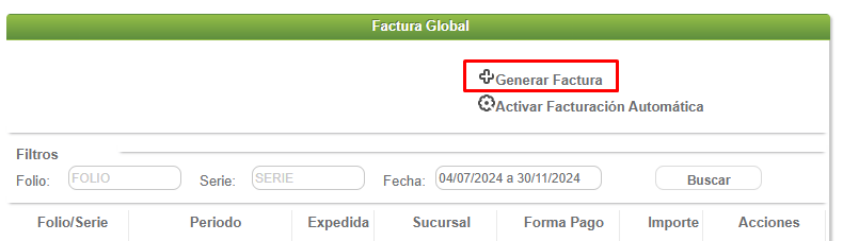
Create global invoice
Once inside the module, you can generate the global invoice for the period for each branch or for all branches.2
In the first section of the form you must indicate the invoicing period, selecting the start and end dates for the search of active receipts; you can use the icon  To display the calendar, you must also specify the branch. If you wish to generate a global invoice for all your branches, or if you do not have any branches, you must select the "Todas las sucursales" option.
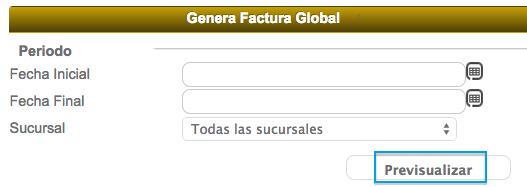
When you're finished, click the "Previsualizar" button.

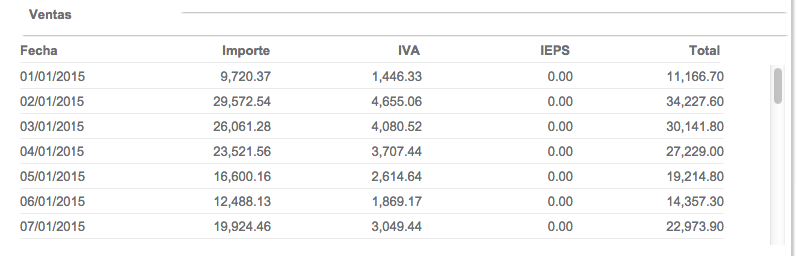
The system will show you a breakdown of the totals for the global invoice at the bottom of the screen; however, before continuing, you must specify the general details of the invoice.
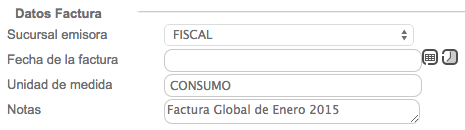
Specify the "Sucursal emisora" the address of your invoice, also indicate the date of issue of the invoice, the unit of measure and the notes of the invoice.
The system will show you a breakdown with the amount, IVA and total sales for each day.
You will also see three lines at the end of the breakdown, which are:
- TOTAL VENTAS: sales made during the selected period.
- TOTAL AUTOFACTURAS: the total of self-invoiced sales.
- RESTA POR FACTURAR: total sales for self-invoicing.
The result of subtracting "Autofacturadas" from "Total ventas" will be the total amount for which your global invoice will be generated.

If you receive a message like the following when you perform the "previsualización", it means that there are active invoices prior to the date range you selected that have not been invoiced; it will also indicate the date of the last invoice so that you can consider its invoicing.

When finished, click on the "Generar factura global" button located at the bottom left of the screen.

Accept the invoice generation by clicking the "Aceptar" button.
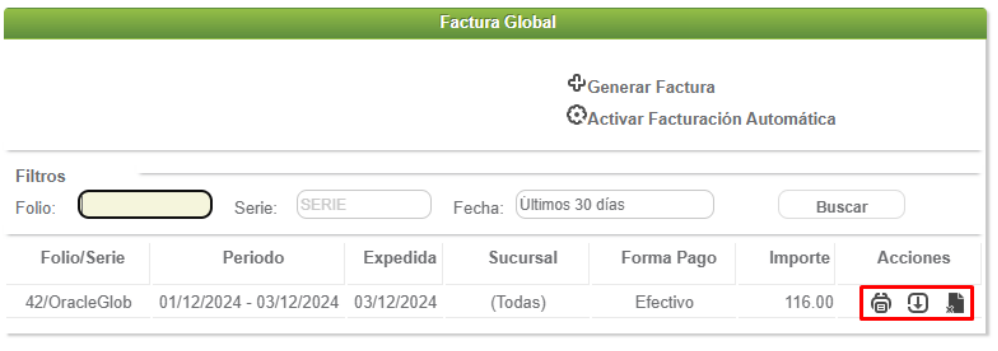
Once the invoice is generated, you can view it on the main screen. From there you can perform different actions with the invoice, and from this interface you can even activate "Facturación Automática".
Activate automatic invoicing
To enable the feature, click on the "Activar Facturación Automática" icon in the panel.

A window with options will appear. Select the issuer and the branches for which the invoices will be generated.
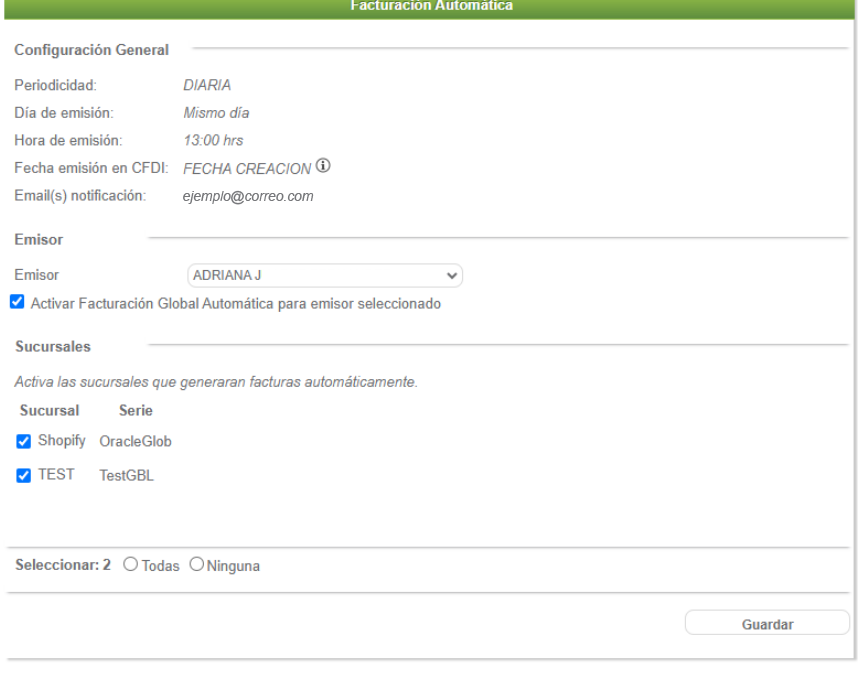
If you need to define or change the frequency, you need to contact the Support department.
Download global invoice
The icon  Download the PDF of theinvoice, as well as the icon
  It allows you to download the XML of the global invoice; click on the icon you want to perform the download.
Cancel global invoice
The icon  this will allow you to cancel the invoice by clicking on it. The system will then display a window with the invoice's general information. You can add the reason for cancellation (optional). Then, click the "Cancelar factura" button to complete the process.
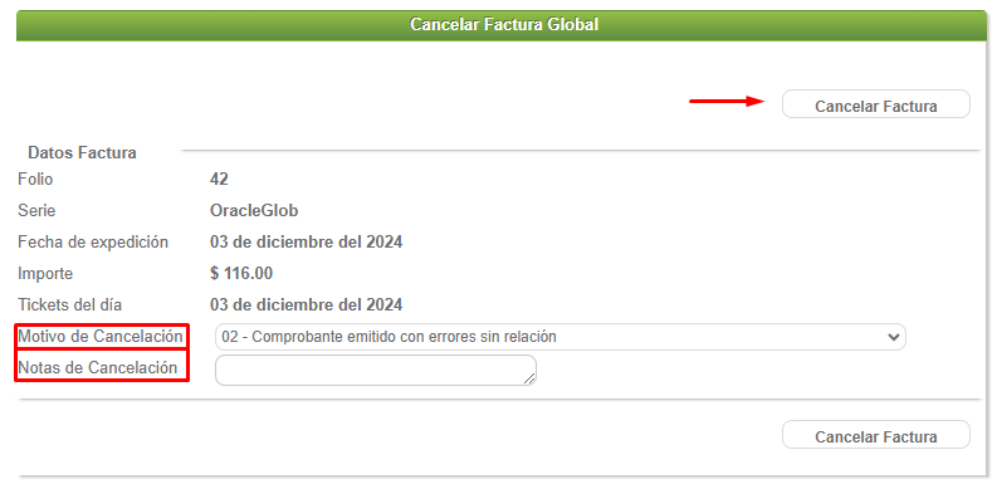
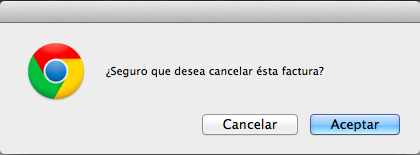
Next, accept the cancellation of the receipt by clicking the "Aceptar" button.
Once the process is complete, you will notice that the document is displayed with a line through it, indicating that the document is canceled.

Note: When a global invoice is canceled, the receipt numbers belonging to that document are "liberados" and can be invoiced again, either as a global invoice or through self-invoicing. The system will notify you of this action with a message.

