Tags: Payments, CFDI, 4.0, payment complement
Lesson ID-107.2
Updated to:
04/02/2026
Lesson objective
That the user knows how to create a CFDI with payment complement.
Create a CFDI with payment complement
To perform this action, you must first log into the system as indicated in lesson
ID-101.1
Click on the "Payments" tab.

In the "Actions" menu on the left side of the screen, click on the "crear pago manual" option.

In "Serie" select the series you previously configured for the payment complement; if you have not configured one, see how to do so in lesson ID-106.5.2.
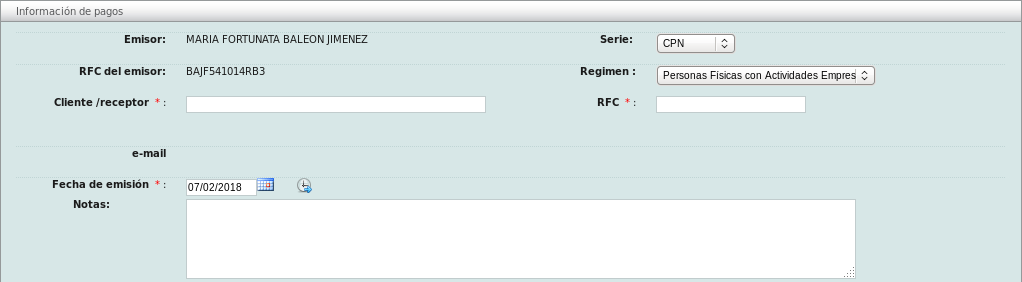
Next, you will need to gather information from the recipient.
Next, you will need to gather the general payment information. First, specify the payment date and time, amount, and currency. If you do not specify an issue date, the system will use the date the e-document was created. Similarly, if no time is specified, the system time will be used.

Next, you must fill in the fields of the document (CFDI) related to this e-document. It is very important to remember that you can only reference CFDIs that are linked to the recipient of this receipt. To add them, click the "Agregar" button.

You can add as many e-documents as you need. Once you have finished this process, click the "Guardar" button.