Tags: MRP, import, product, Excel
Lesson ID-105.5
Updated to:
29/12/2025
Lesson objective
The user should know how to import products/services from an Excel file.
Import products in Excel
To perform this action, you must first log in to the system as instructed in lesson ID-101.1
Click on the "MRP" (Material Requirements Planning) tab.

Click on the "import product" option in the menu on the left side of the screen.
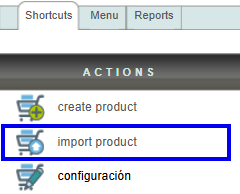
In this menu, you can upload the Excel file containing the information for each product.
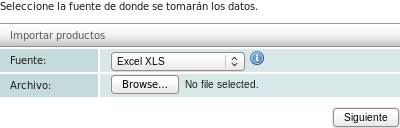
The Excel file needs to specify the name of each column containing the product information in the first row. After that, you can specify as many products as you need, one per row.

-
Obligan
- Código SAT
- Código
- Nombre
- Categoria
- Linea
- Unidad
- Clave Unidad SAT
- Precio
- Moneda
- tasa iva
- tasa IEPS
Click the "Importar productos" button to select the file containing your information. After selecting the file, click the "Siguiente" button.

The system can only retrieve information from one Excel sheet; if your file has more than one sheet, you must select the desired sheet. Then click the "Siguiente >>" button.

The system will then show you which data point it will take from your Excel file for each product. If any data is being taken from the wrong column, you can correct the mapping here before continuing.
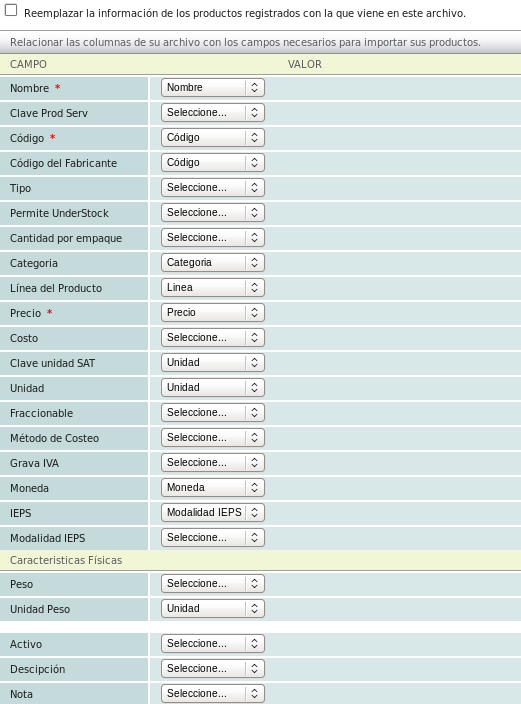
When you are ready, click the "Importar" button. The system will import the information and inform you if any errors occurred. Then click the "Finalizar" button.
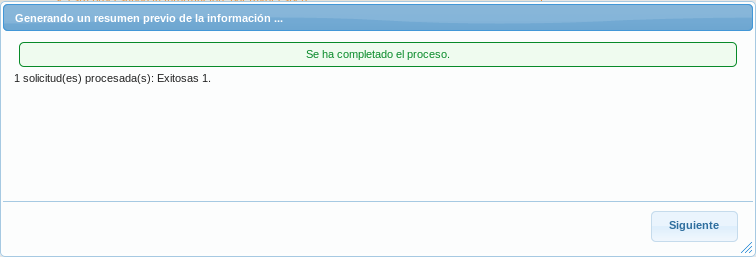
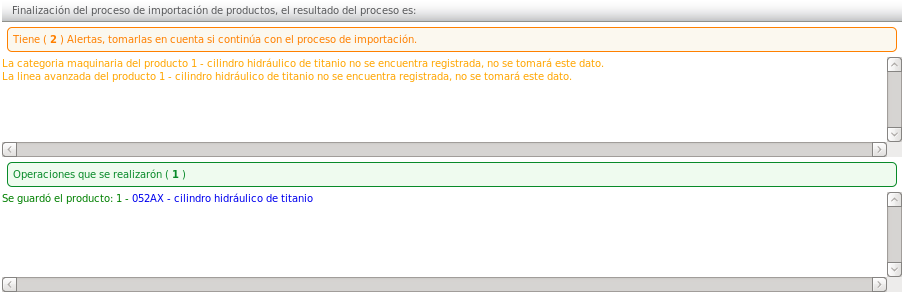
Finally, a summary of the activity will be displayed, showing the products that were successfully imported and whether there were any errors or exceptions.