Index | Lesson index | Lesson ID-107.5 - Replacing and cancelling an e-document with payment complement
Tags: Payments, cancel, replace
Lesson ID-107.5
Updated to:
16/02/2026
Lesson objective
That the user knows how to replace and at the same time cancel an e-document with the payment complement either due to an error in the complement or due to an overpayment in all related e-documents.
Legal basis
In accordance with the rules for filling out an e-document with payment receipt complement that applies to version 3.3 of the SAT's e-document, a payment receipt can ONLY be cancelled if it is replaced by another one:
"Regarding the issuance of the an e-document with the 'Payment Receipt Complement,' when there are errors in the receipt, it may be canceled provided it is replaced by another with the correct data. If the error consists of the e-document with the 'Payment Receipt Complement,' also called the 'Electronic Payment Receipt,' not having been issued because the consideration had already been paid in full, upon cancellation it must be replaced by another with an amount of one peso".
(Filling Guide, Page 5, paragraph 4).
Replacing and cancelling an e-document with payment complement
Para realizar esta acción primero deberá ingresar al sistema tal y como se indica en la lección
ID-101.1
De click en la pestaña "Payments".

Select and click on the e-document you wish to cancel.

Once inside the e-document, click on the "Clonar" option in the Actions menu located on the left side of the system.
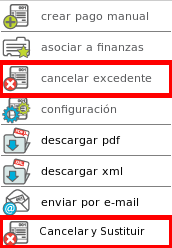
This function creates an exact copy of the e-document to be cancelled.
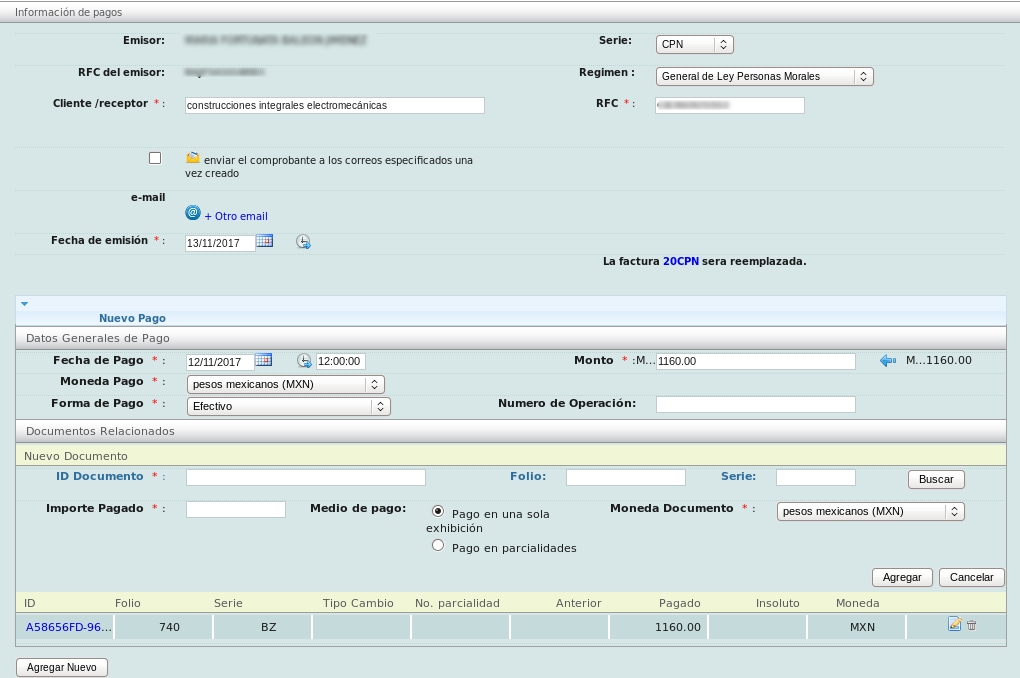
At this point you can edit the errors made in the previous e-document.
Next, edit each added invoice and in the "Saldo Anterior" field change the amount to the initial value as if it were the first payment, since the system still considers the previous payment as valid.
Note: Before performing the above action, you will notice that the previous balance is shown as negative, therefore, it is important to modify the balance.
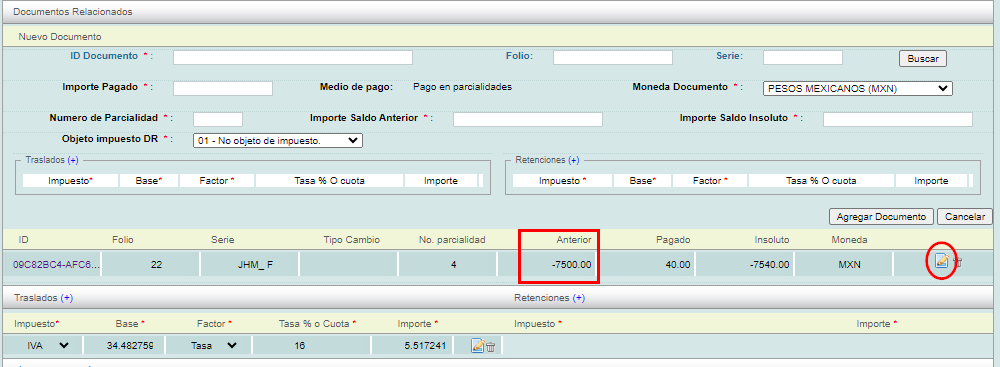
So that the outstanding balance shows the desired value (In this example, balance 0.00).

After updating the payment information, you need to link it to the previous receipt. To do this, click on the "Seleccionar factura" option.

In the new window that opens, select "Tipo de relación" 04 - Sustitución de los CFDI previos". Then, locate the invoice and click on the green circle to add it to the current payment. You can now close this window.
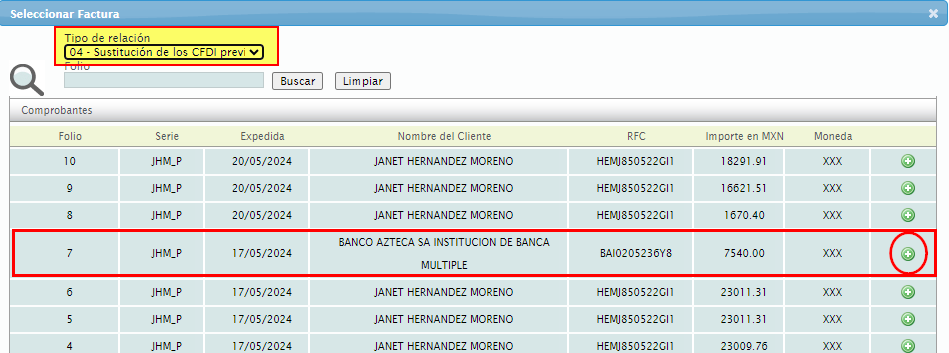
If the operation was performed correctly, the window will be displayed as follows.

Finish this first part by pressing the "Guardar" button. With this new e-document, go to the bottom and locate the "Datos de Timbrado" section, and copy the UUID generated by the SAT.
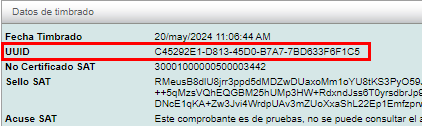
Next, return to the e-document you wish to cancel and to select it, click on the "Cancelar" option, located in the actions menu on the left side.
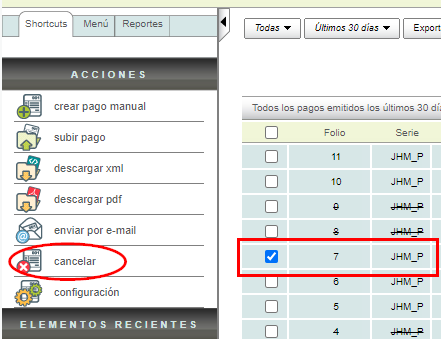
An active window will appear, in which you will select the cancellation before the SAT with the code “01 - Comprobante emitido con errores, con relación”. and in the Folio field that replaces paste the UUID copied above.
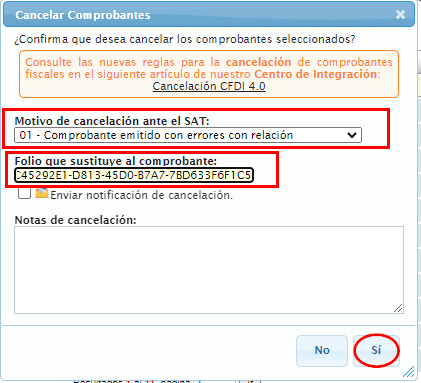
Cancellation notes are optional and are stored on the Solución Factible portal.
Finally, click the "Sí" button to start the cancellation process with the SAT.
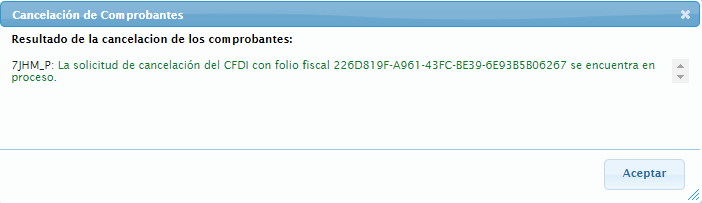
According to the rules and processes of the SAT, it is only necessary to wait a few minutes to be able to check the status of the cancelled e-document again.

If you still have questions about this process, we suggest contacting our Technical Support departament.
