Tags: Invoicing, CFDI, Payment complement, 3.3
Lesson ID-103.14
Updated to:
06/02/2026
Lesson objective
That the user knows how to create a payment complement with a different currency.
The payment complement can be created from the following modules:
Create a payment complement with a different currency
payment module
To perform this action, you must first log into the system as indicated in lesson ID-101.1
Click on the "Payments" tab.

Locate the "Actions" menu on the left side of the screen, then click on the "crear pago manual" option.

The following notice will be displayed at the top of the screen.

If you decide to create the manual payment, first select the customer/payment recipient.
Then, in the "Documentos Relacionados" section, search by folio and series for the invoice related to this payment and click on "Buscar".
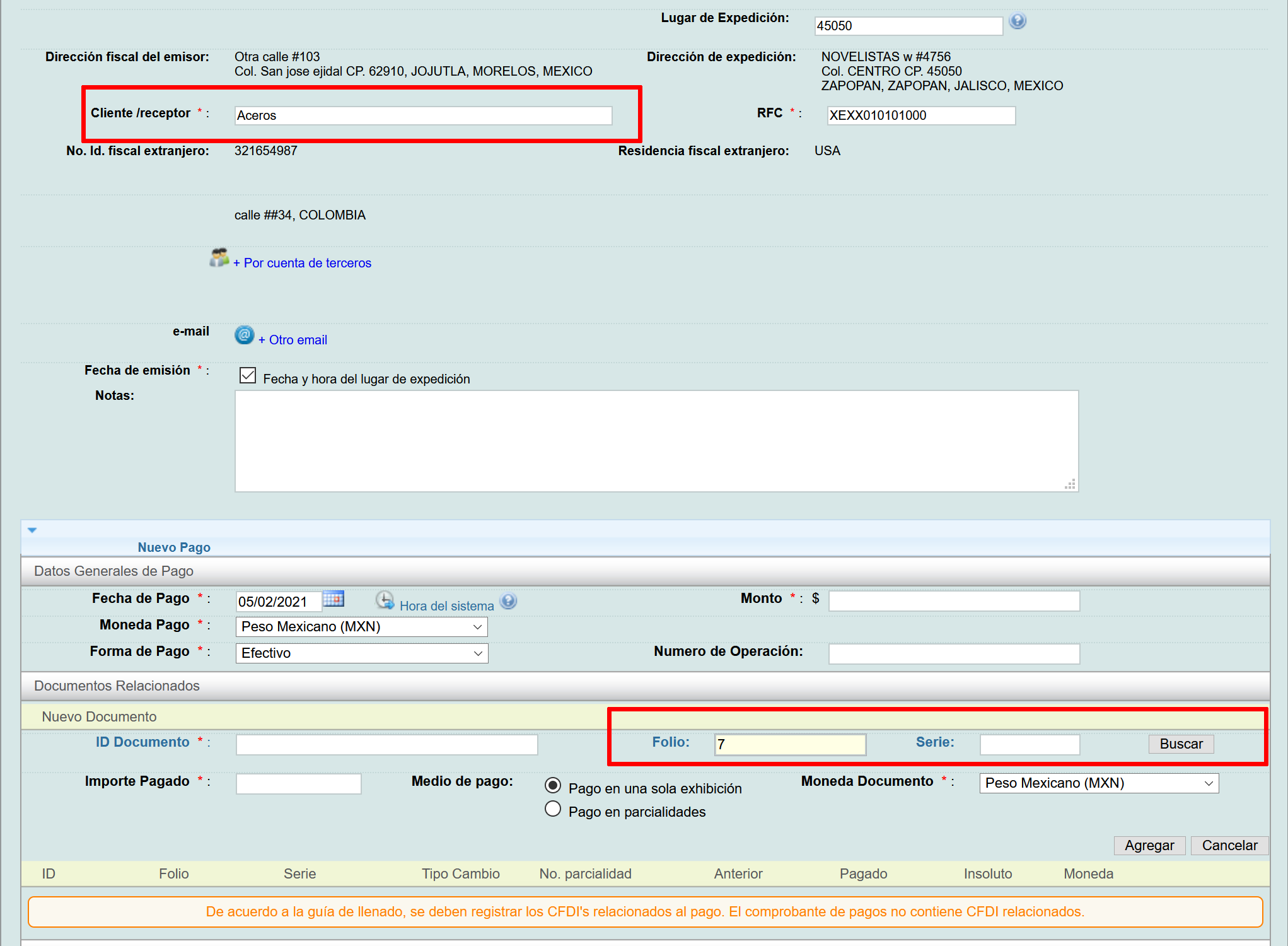
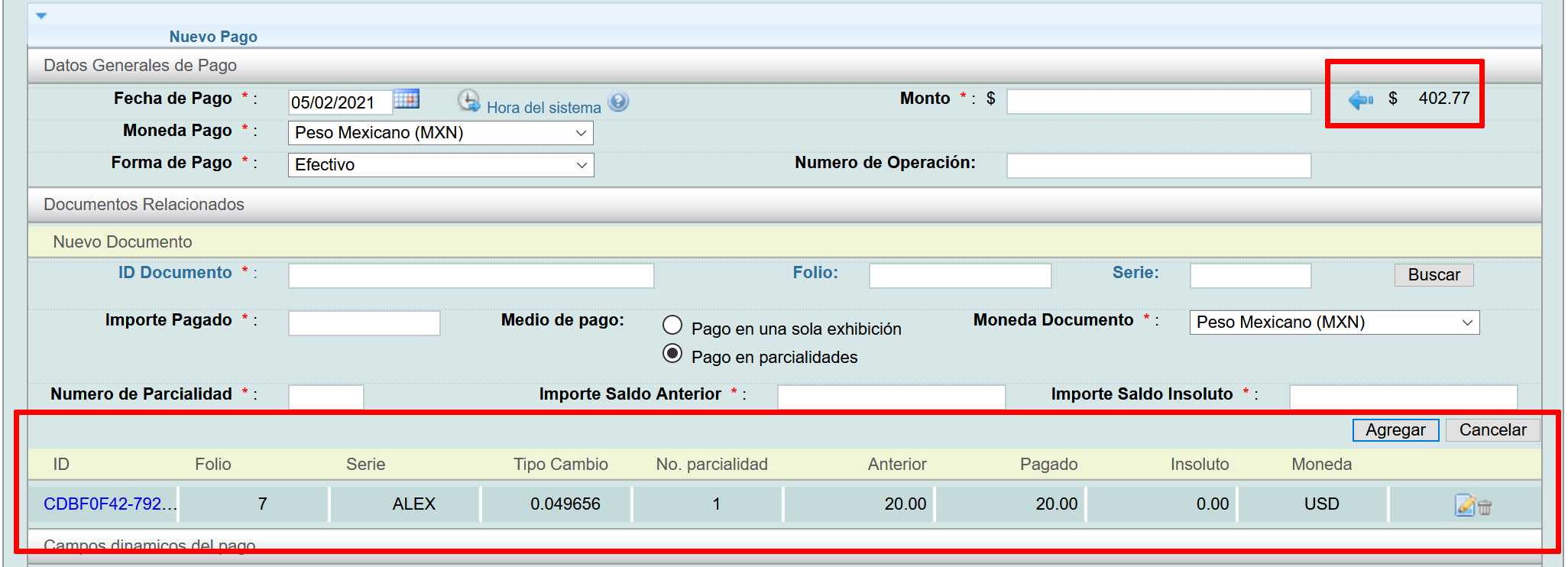
The section will be filled with the e-document information. You will see the receipt currency and its exchange rate displayed. If the information is correct, click the "Agregar" button.

The related e-document will be included under the "Documentos Relacionados" section. Note that in the first section, "Datos Generales de Pago" located to the right of the "Monto" box, an arrow will appear along with the suggested amount in MXN.
Clicking on the arrow will add the amount.
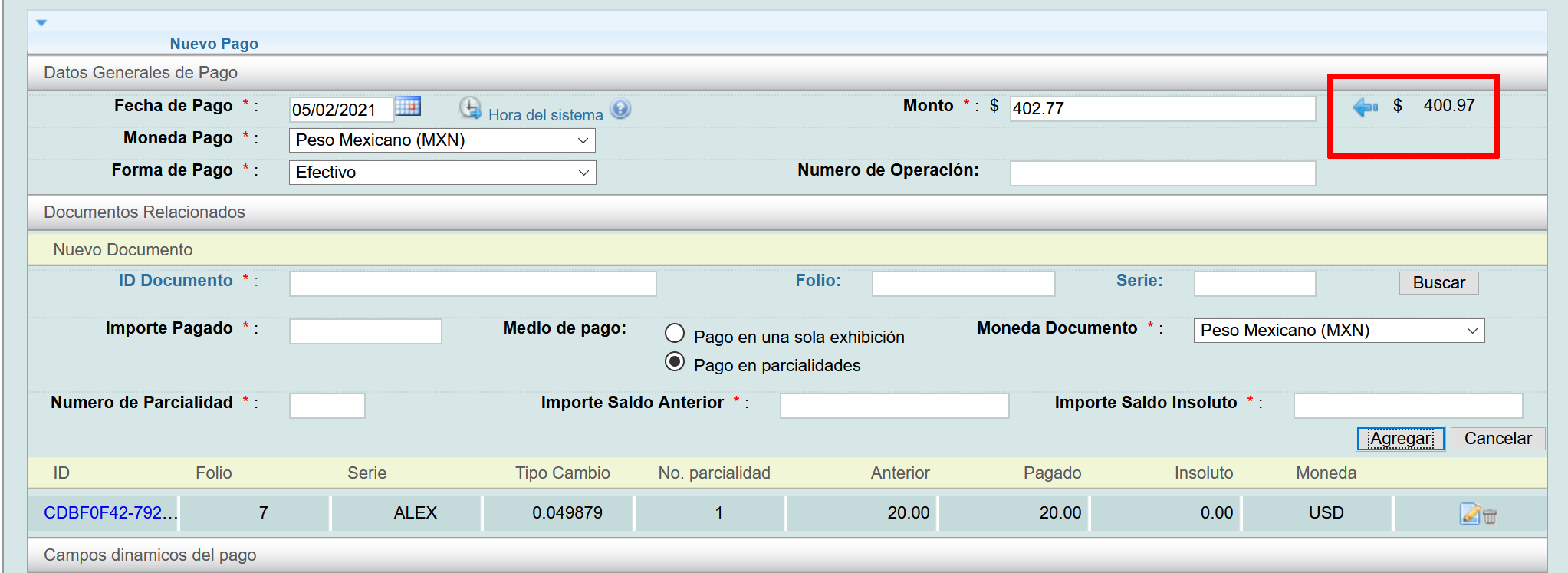
You may need to manually change the exchange rate or the amount paid. If this is the case, you must edit the e-documents details. Click the edit icon next to the relevant document.

After editing the quantities you require, click the "Agregar" button again.
Notice that the suggested amount next to the amount box has changed. You just need to click the arrow again. If the information is correct, click the "guardar" button at the bottom of the screen.
Invoicing module
To perform this action, you must first log into the system as indicated in lesson ID-101.1
Go to the "Invoicing" module.

Click on the invoice for which you wish to register a payment.

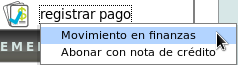
Then, click on the "registrar pago" action in the "Actions" menu to the left of the invoice, and immediately click on "Movimiento en finanzas".
The payment information will be displayed. First, please specify the following details:
- CFDI de pago*: Payment e-document series to be created.
- Cuenta*: The MXN account in which the transaction will be recorded.
- Forma de pago*: Payment method for the e-document.
- Fecha*: The system automatically selects the current date and time.
Once the data has been completed, click on the "Monto*" box.
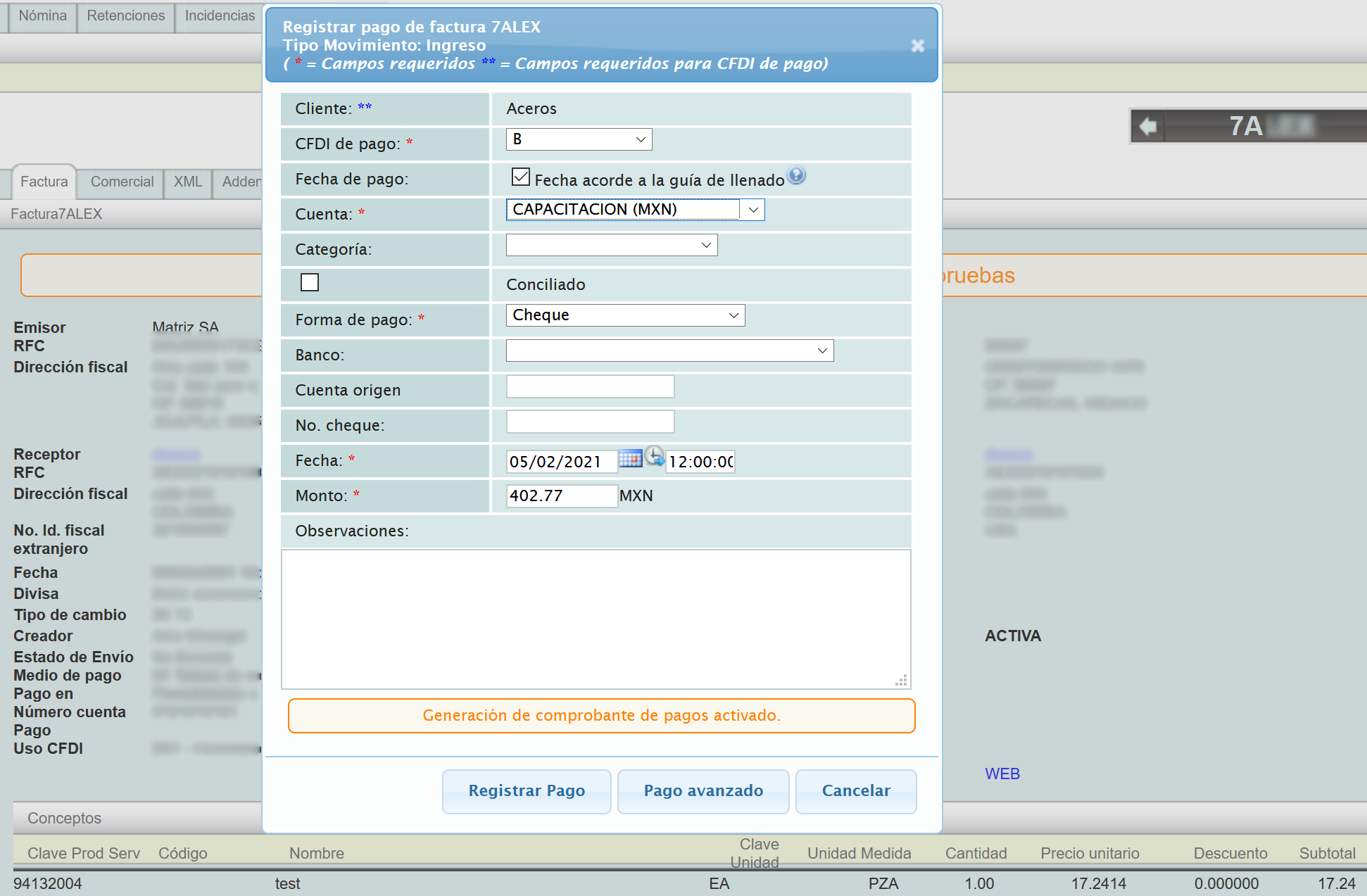
A window will appear where you can change the payment amounts, if necessary. The "Pago" and "Tipo Cambio" fields can be modified. If you do so, you will notice that the payment, which in this case is in dollars, will update automatically.
If you click on the "Tipo cambio" box, the options "Tipo Cambio" and "Pago USD" will be displayed because the invoice is in USD.
The "Tipo Cambio" option allows you to modify the foreign currency exchange rate.
The "Pago moneda extranjera" option allows you to modify the amount in the foreign currency.
To switch between these options, click on it.
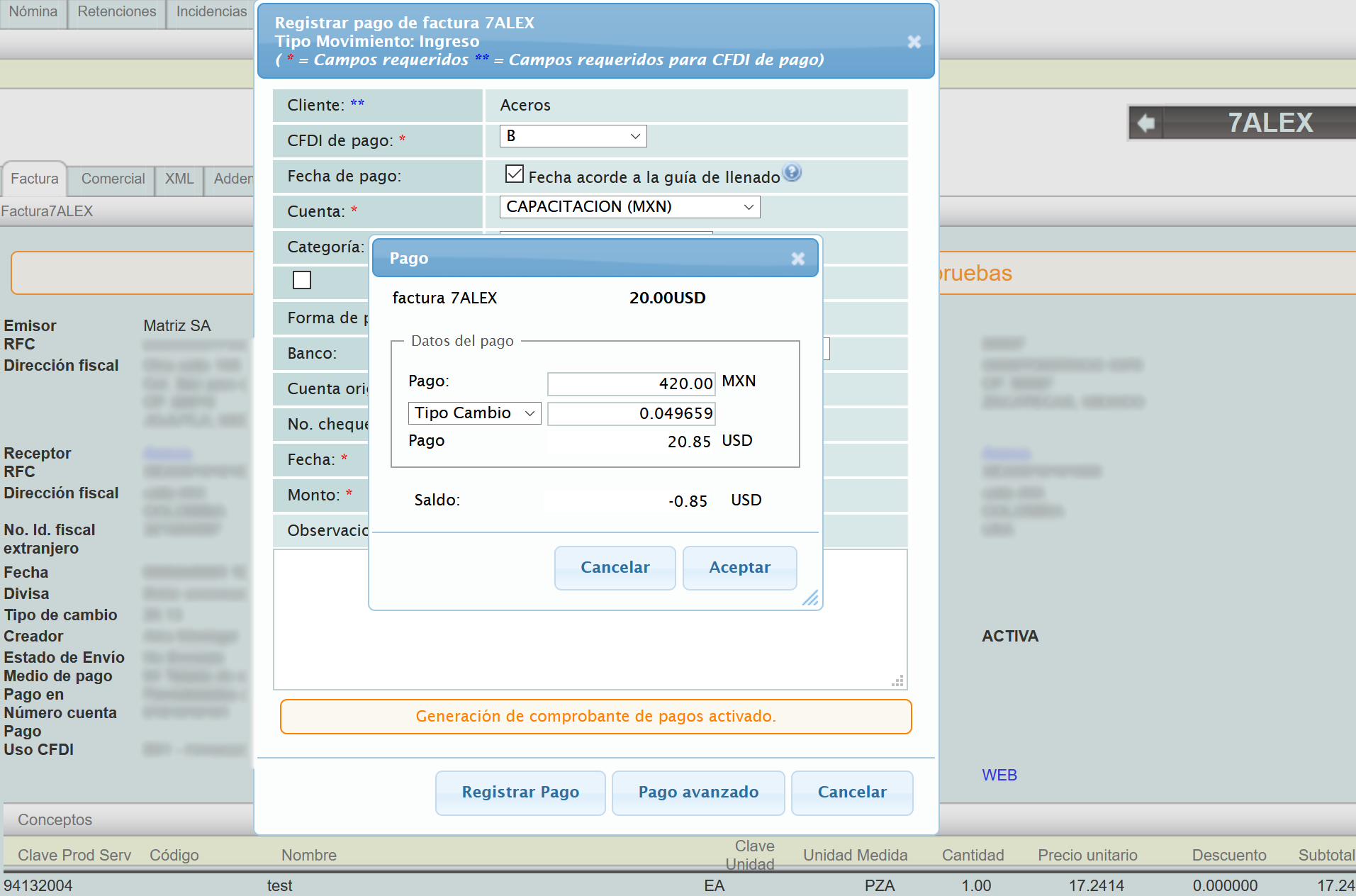
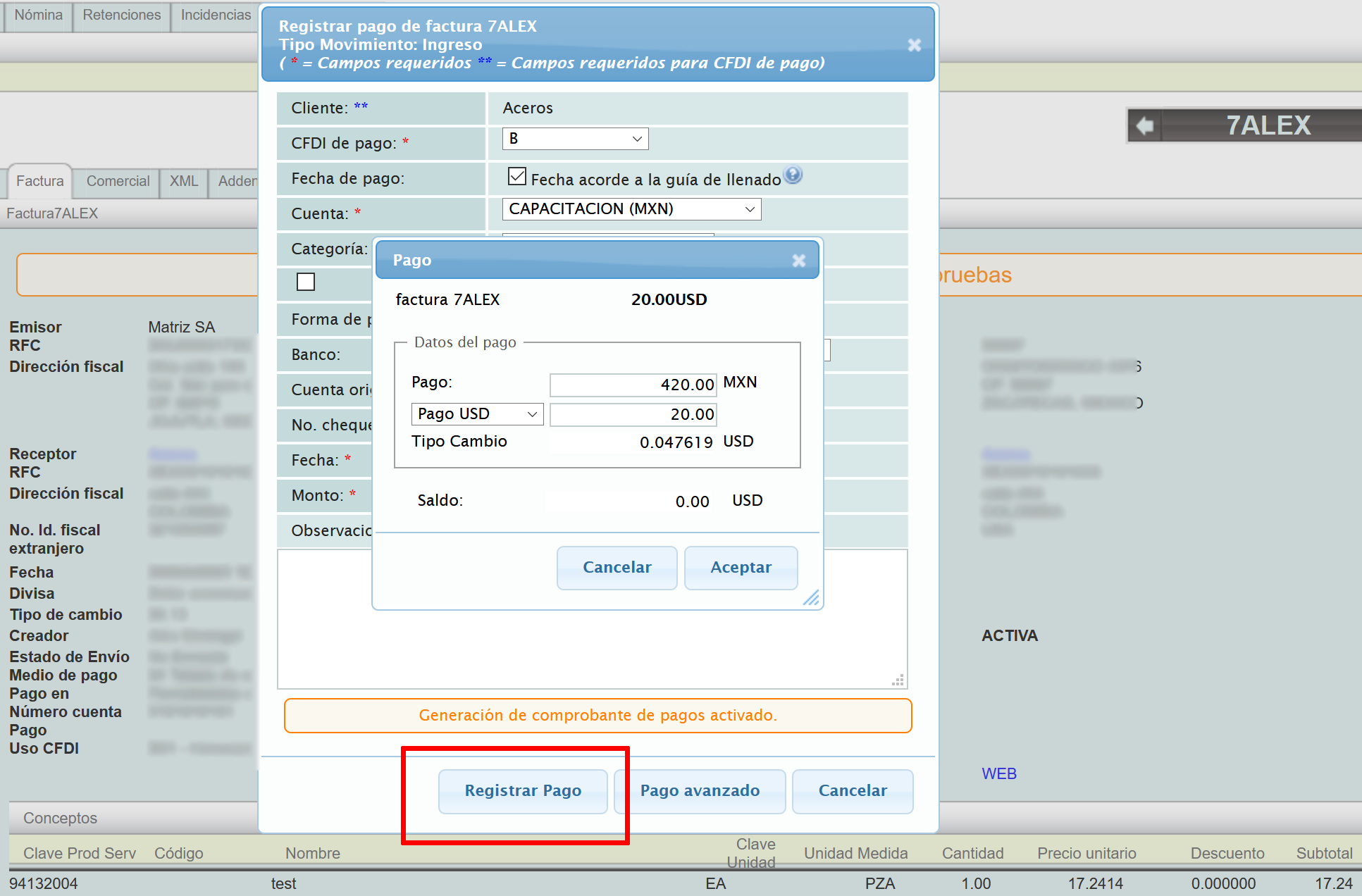
If you are satisfied with the payment details, click the "Aceptar" button. Then click the "Registrar Pago" button.
The system will display the message "El pago se ha registrado satisfactoriamente en la cuenta seleccionada".
Finance Module
To perform this action, you must first log into the system as indicated in lesson ID-101.1
Once inside the system, go to the "Finance" module.

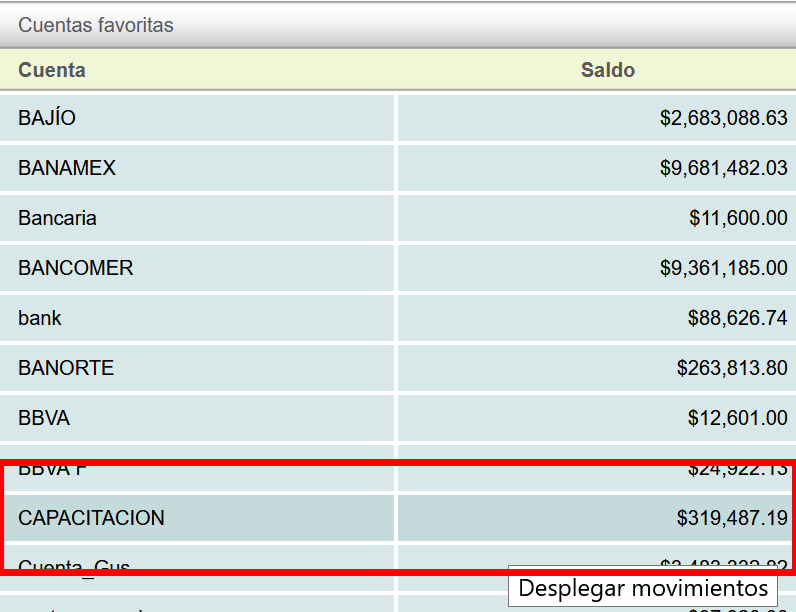
Click on the account where you want to make the transfer.
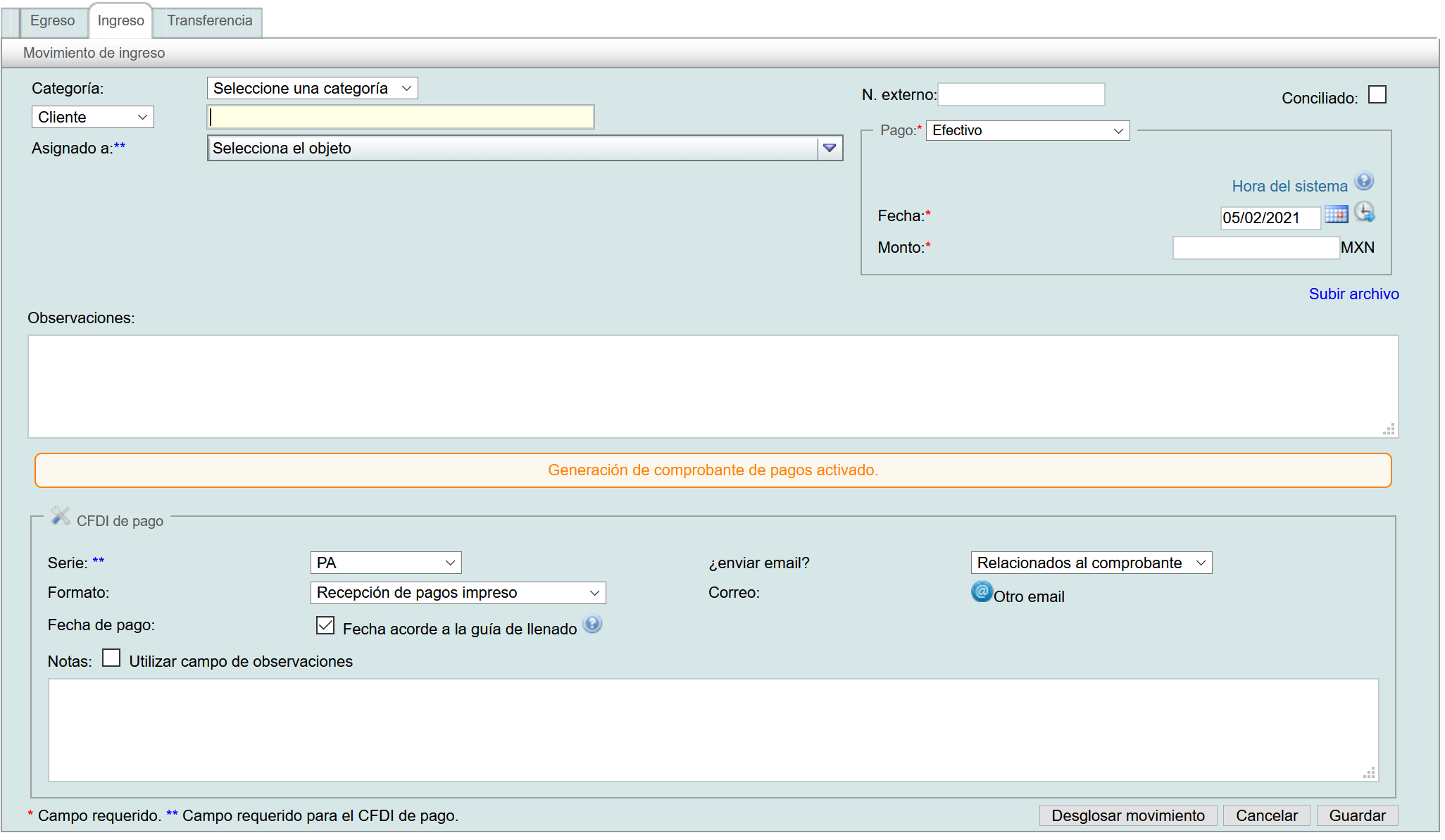
In the lower window of the screen, go to the "Ingreso" tab and under "Cliente" select the customer.
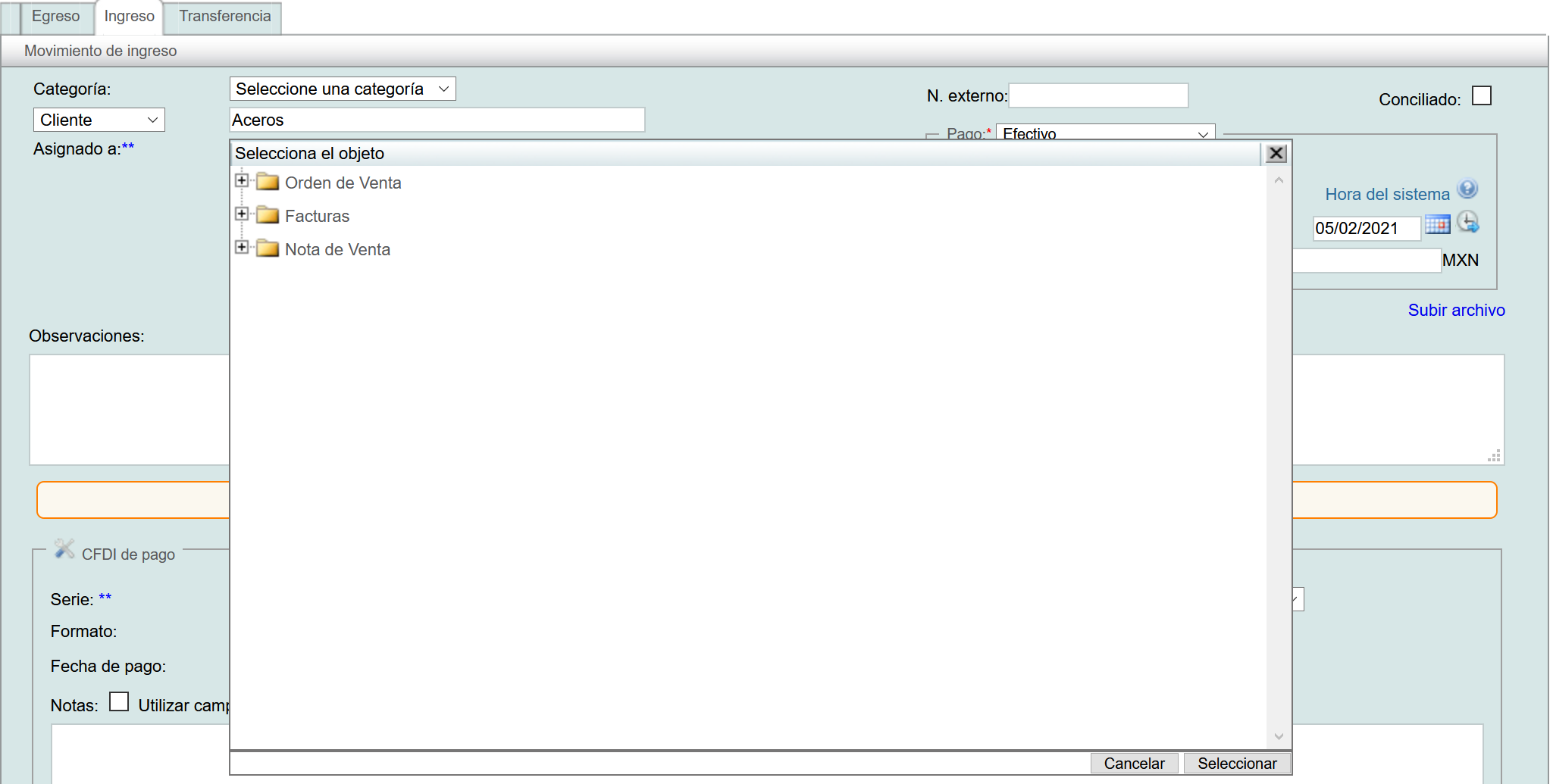
Next, below the Customer field, click on "Selecciona el objeto" In this case, since you are registering a payment for an invoice, you need to find the invoice. Again, click on "Facturas".
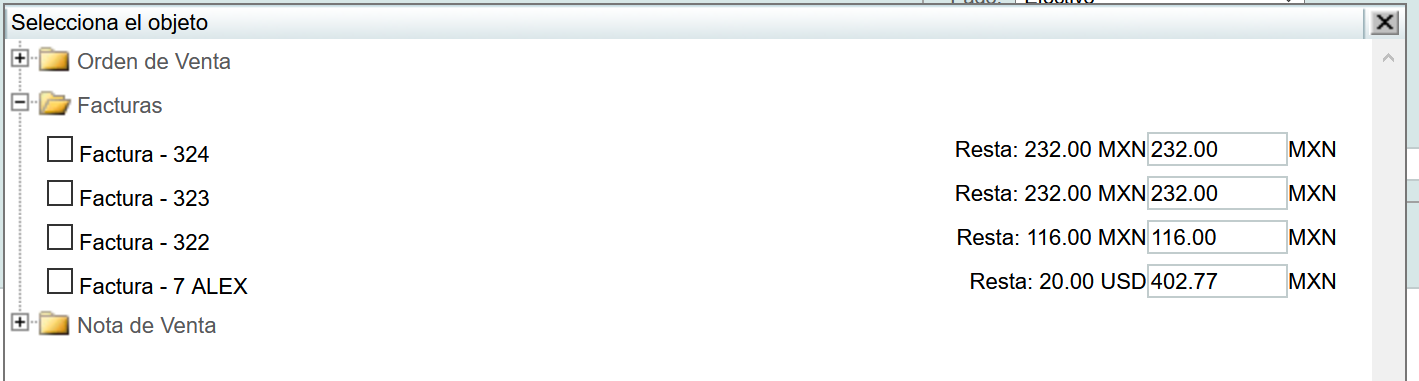
The invoices associated with the selected client will be displayed. In this example, the most recent invoice, which is in dollars, will be used. Click on it.
The same window will appear as when making a payment through the Invoicing module.
You can change the payment amounts if necessary. The "Pago" and "Tipo Cambio" fields can also be modified. If you do so, you will notice that the payment, in this case in dollars, updates automatically.
If you click on the "Tipo cambio" box, the "Tipo Cambio" and "Pago USD" options will be displayed since the example invoice is in USD.
The "Tipo Cambio" option allows you to modify the foreign currency exchange rate.
The "Pago moneda extranjera" option allows you to modify the amount in the foreign currency.
If you are satisfied with the payment details, click the "Aceptar" button and then the "Seleccionar" button.
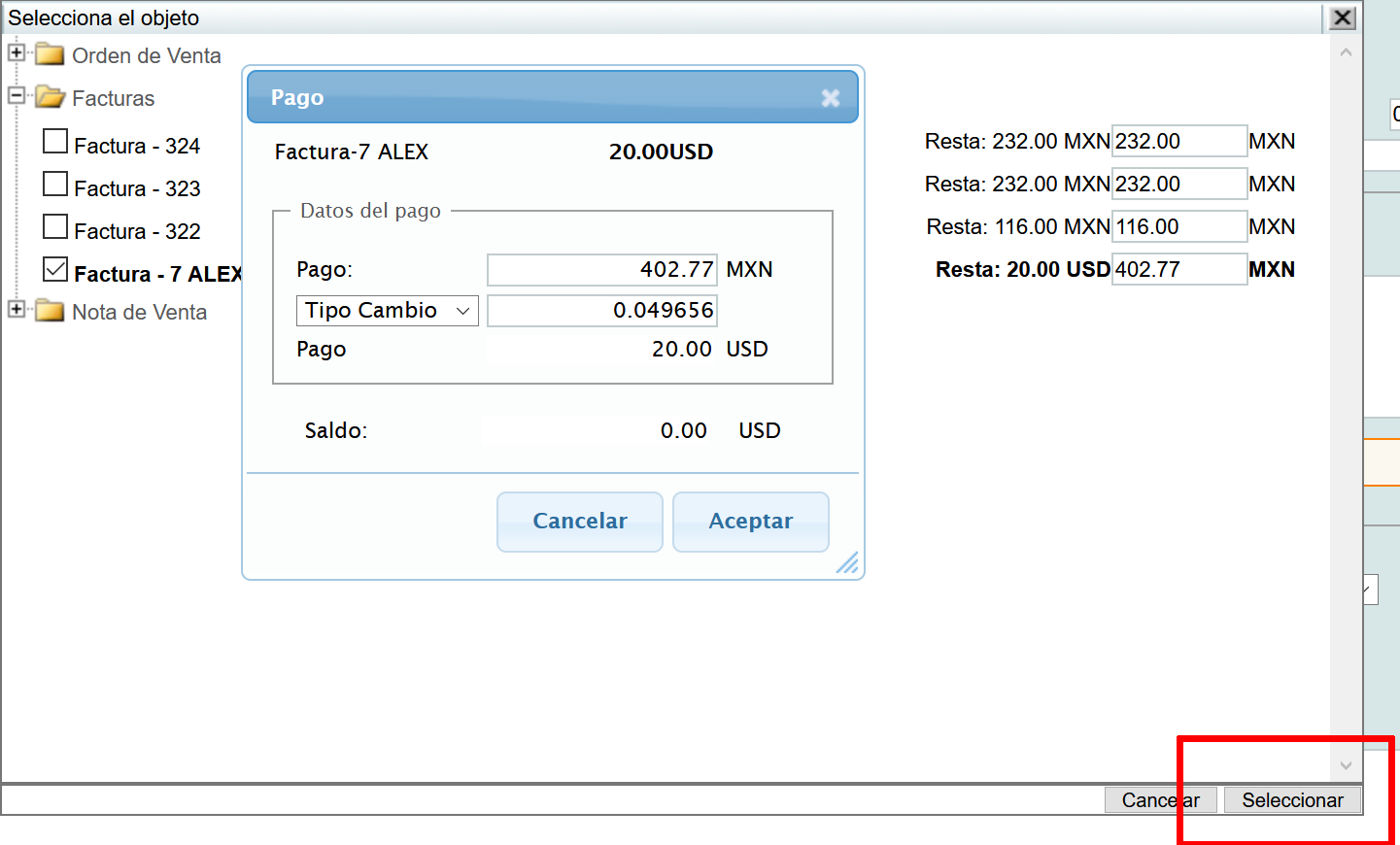
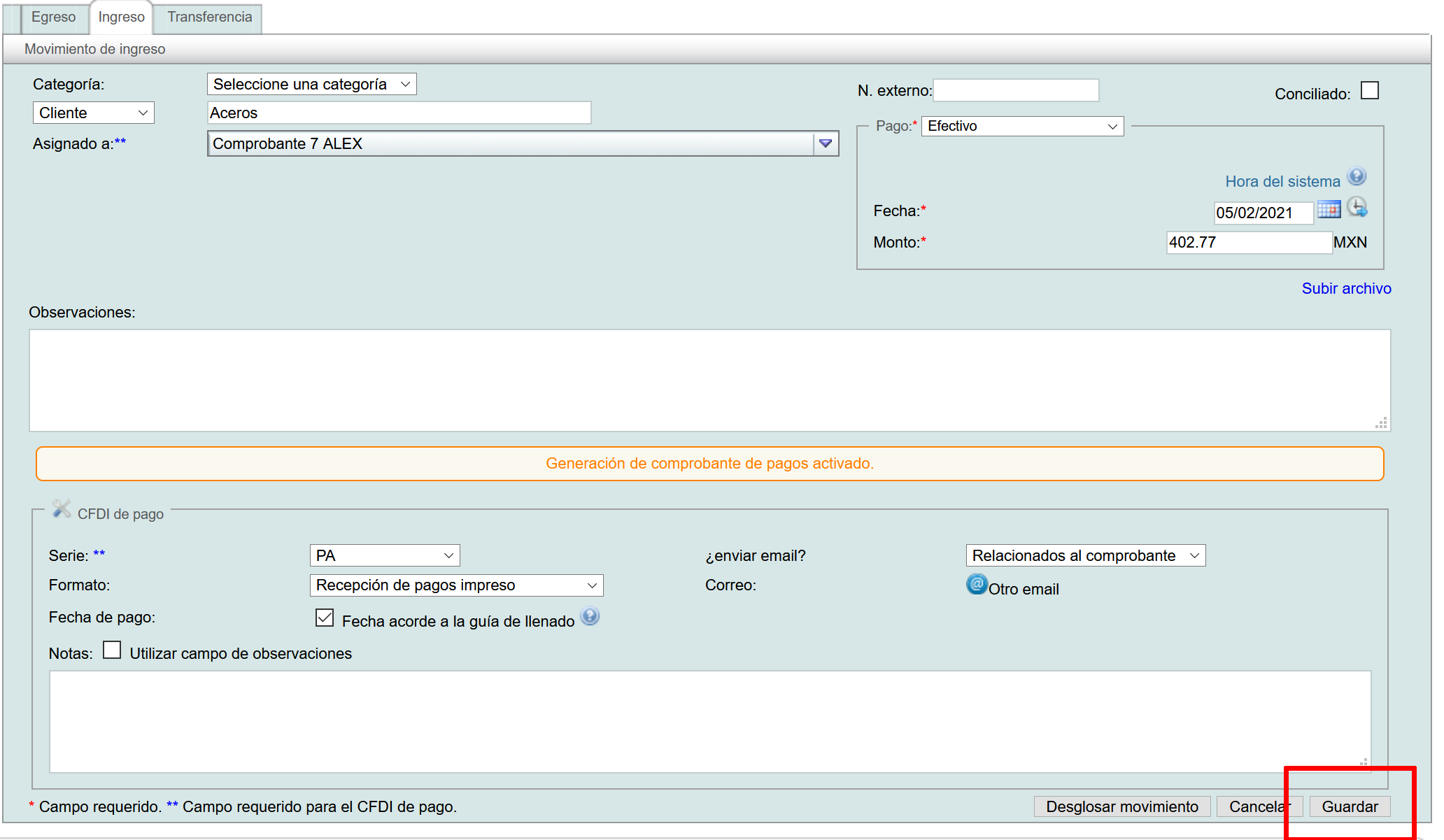
Then, click on the "Guardar" button.