Tags: Invoicing, create, CFDI, complement, exchange trading
Lesson ID-103.11.6
Updated to
10/08/2026
Lesson objective
That the user knows how to create an electronic CFDI invoice by adding the foreign exchange purchase and sale addendum.
Foreign Exchange Trading complement
This complement identifies and supports foreign currency purchase and sale transactions by brokerage firms, currency exchange centers, or financial institutions, providing a record of the transaction.
These complements allow for the inclusion of additional information regulated by the relevant authority for a specific sector or activity, ensuring that this additional information is protected by the digital seal of the electronic invoice.
To perform this action, you must first log into the system as indicated in lesson ID-101.1.
The process for creating the invoice in general remains the same, so you will need to generate it according to your specific requirements. If you have any questions about the general creation of an electronic invoice, please refer to lesson ID-103.2.
That said, we understand that the complement must be added before saving the invoice.
Once inside the system, enter the "Invoicing" module.

The following form will appear where you must specify the invoice details.
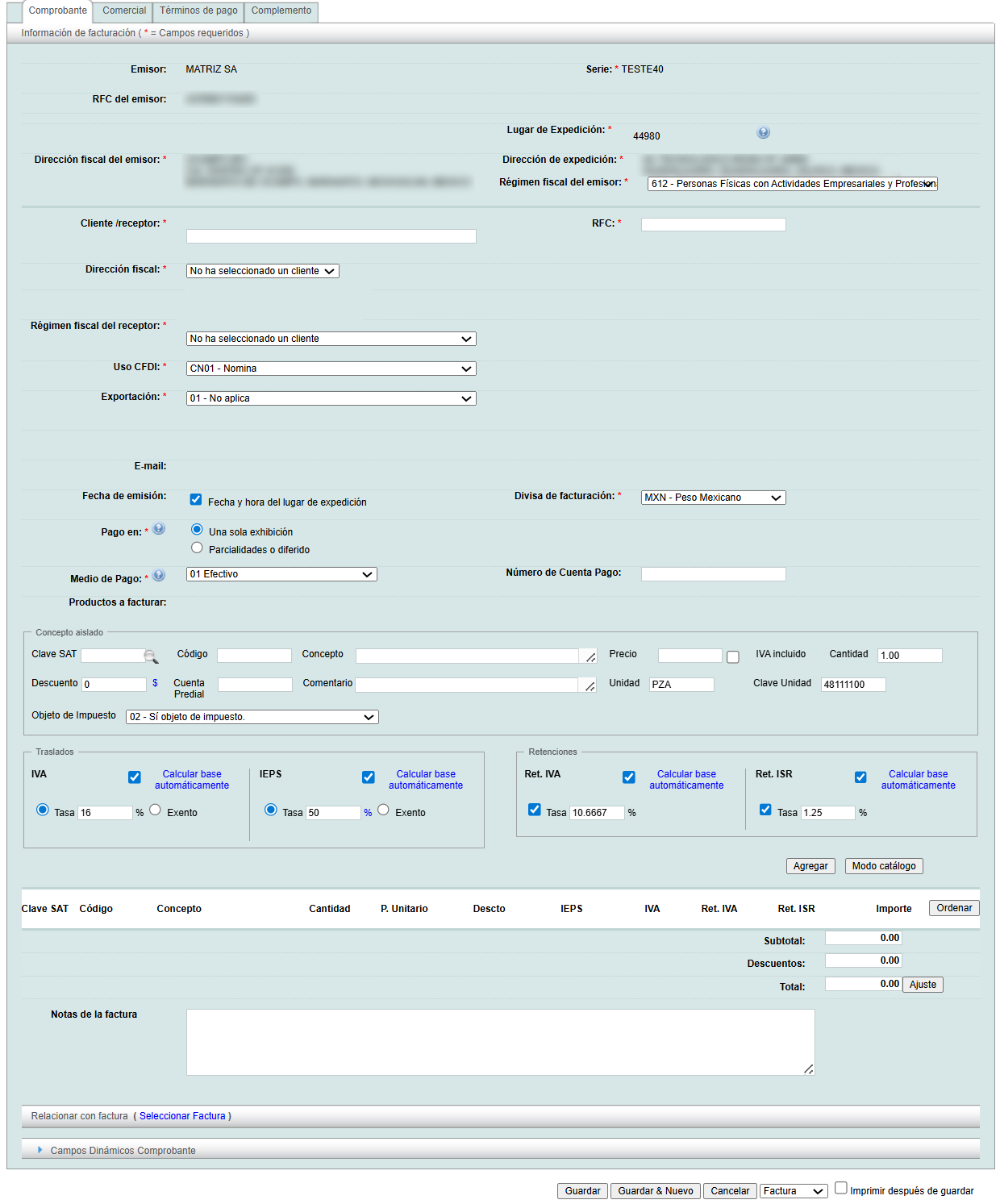
If you need to link the invoice, click on "Seleccionar factura", the following form will be displayed.
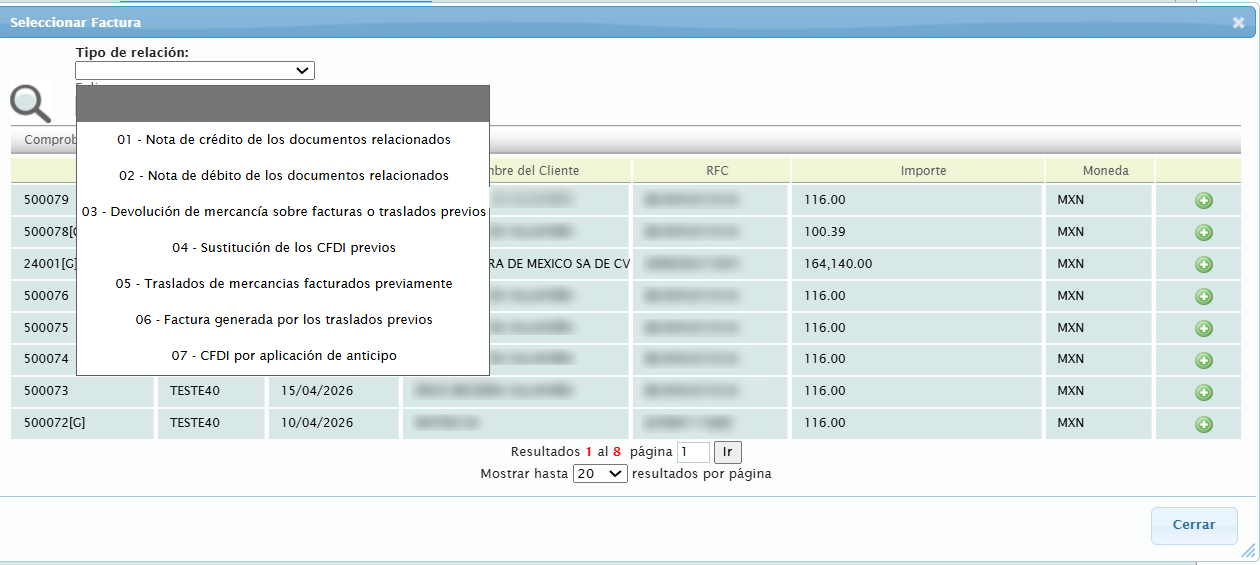
Select the "Tipo de relación" of the invoice you are relating to, add the selected invoice and press the "Cerrar" button.
Next, click on the "Complemento" tab located at the top of the form.

Select the "Divisas" complement from the list and choose the "Compra" or "Venta" option.
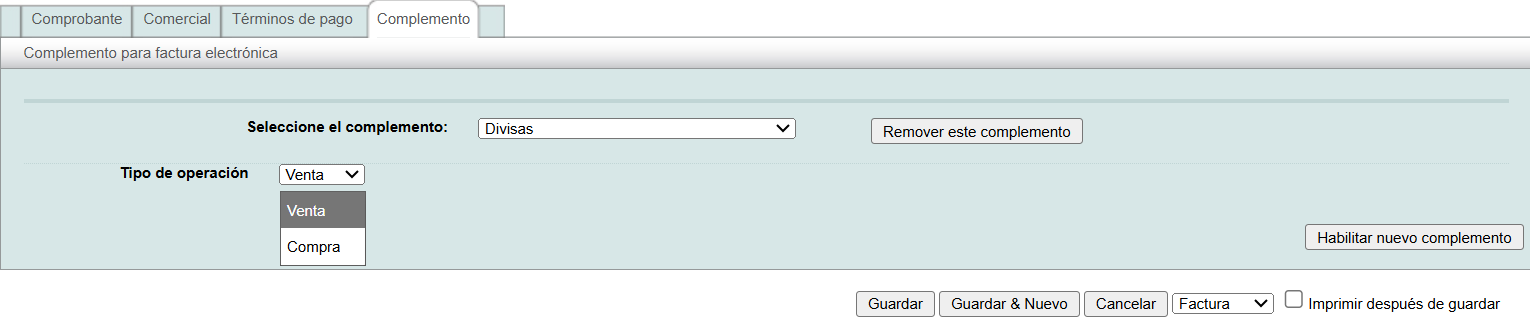
Finally, click on "Guardar", a screen will be displayed.
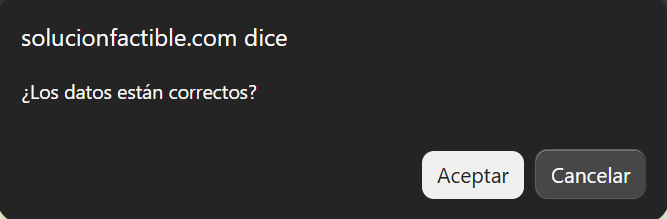
When you finish entering the complement information, save the invoice. If you have any questions about this, refer to lesson ID-103.2.
