Tags: restore, password, blocked up
Lesson ID-102.1
Updated to:
23/01/2025
Lesson objective
Let the user know the steps to follow to reset the password if it is blocked.
Reset locked password
The Solución Factible® billing system, as a security measure, blocks the user account when it detects that attempts to access the system are made with incorrect authentication data. It is important that you have confidence that your information is protected against any intruder.
Resetting the password is the sole power of the user since the process requires access to their email account; in this way, we ensure that only the user can carry out said process.
Likewise, we recommend that you change your password periodically within the system. To learn about this process, consult lesson ID-102.2.
You can change your password in 5 easy steps.
Note: We recommend that you memorize your new password and not store it on your computer.
Step 1
You will need to enter the login link as shown in the lesson ID-101.2
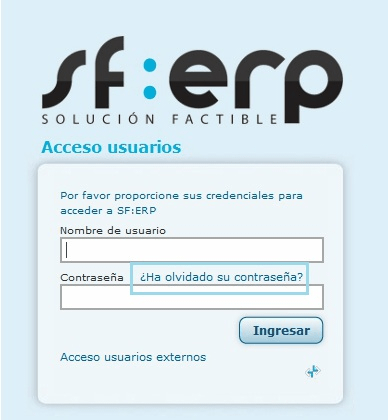
To start the process, click on the option ¿Ha olvidado su contraseña? (Forgot your password?).
Step 2
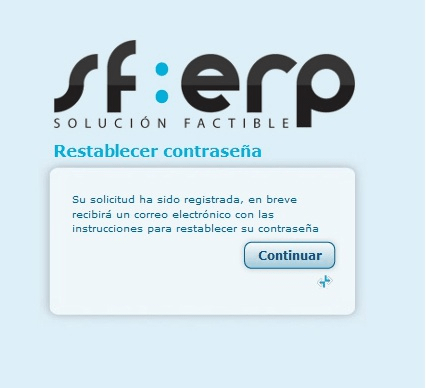
By clicking on this option, the system will request your email (User Account). Then you must click on the button Enviar solicitud (Send request); this way you will receive a link in your email to continue with the process.
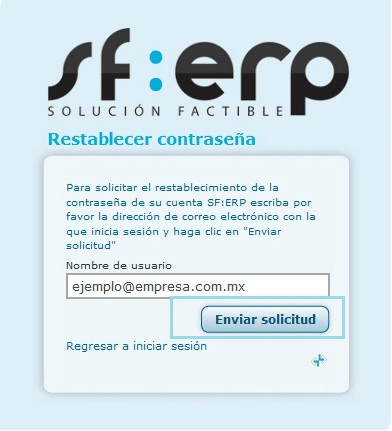
Note: You must capture the email that was registered by Solución Factible® for the login to your implementation; otherwise you will receive an error message.
Step 3
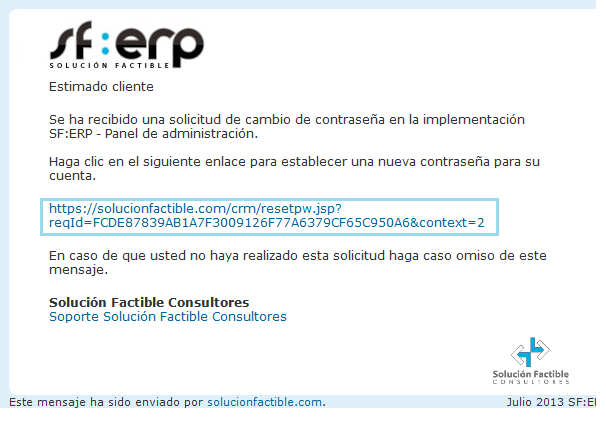
Go to your email account (Username), where you will receive an email from service@solucionfactible.com with the password reset link.
Note: If you cannot find the email in your account, we recommend checking your "correo basura" "Spam" o "Junk mail".
Step 4
By clicking on the link, a new window will open where you can enter your new password. When you finish carrying out this process, click on the button Restablecer (Restore).
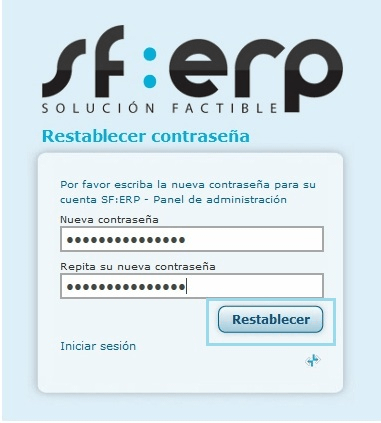
Note: You must enter a new password that has special characters
(Example #$%;.:-_,) numbers and upper and lower case letters. The minimum length of your password must be 8 characters.
See the example of "Secure password"
Step 5
If the reset was successful the system will confirm the change as shown in the image below, otherwise try again to add a new password as indicated in the "Step 4".
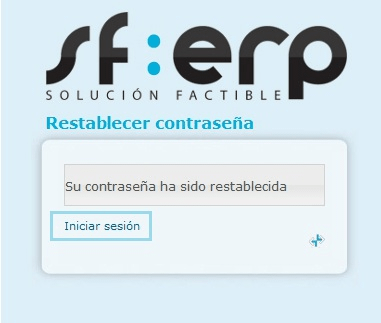
Note: Now just click on the button Iniciar sesión (Login) where you can enter your account and password (which you have already reset) to access the system.
If you have any questions, please contact our support department.
Example of a secure password.
A strong password must have special characters such as (#$%;.:-_,) numbers and upper and lower case letters (at least 2 of each), the minimum length must be 8 characters.
Example: Ab1.Cd2%
The password mentioned above is an example of a "secure password" since it has at least two uppercase letters ("A" and "C"), two lowercase letters ("b" and "d"), two numbers ("1" and " 2") and two special characters ("." and "%"), together they meet the required minimum of 8 characters.
