Tags: change, password
Lesson ID-102.2
Updated to:
23/01/2026
Lesson objective
That the user knows how to change their password within the SF:ERP invoicing system without the need to be blocked.
Note: This lesson will tell you how to change your password but not how to reset it, to know the reset process see the lesson
ID-102.1
Change password
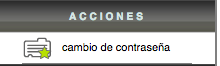
You can change your password within the system, first you must log in following the steps in the lesson ID-101.2 "Ingresar al sistema", once inside the system, click on your username located in the upper right part of the main screen and then the "Acciones" menu will present the "Cambio de Contraseña" option.
In the first section you must enter the current password, that is, the password with which you entered the system.
Next you must enter the new password and confirm the information, when finished click on the button "Guardar".
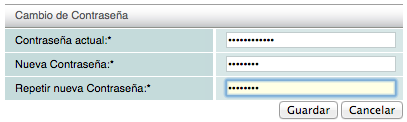
The new password must meet some security criteria, such as containing special characters (#$%;.:-_,) numbers and upper and lower case letters and have a minimum length of 8 characters.
See the example of secure password "Contraseña segura"
The password has been changed satisfactorily, we recommend that you memorize it and not store it on the computer as well as change it periodically.
Secure password example
A strong password must have special characters such as (#$%;.:-_,) numbers and upper and lower case letters (at least 2 of each), the minimum length must be 8 characters.
Example Ab1.Cd2%
The password mentioned above is an example of a "contraseña segura" since it has at least two uppercase letters ("A" and "C"), two lowercase letters ("b" and "d"), two numbers ("1" and " 2") and two special characters ("." and "%"), together they meet the required minimum of 8 characters.
