Tags: upload, new, CSD, configuration
Lesson ID-106.1.2
Updated to:
31/12/2025
Lesson objectives
The user should know how to upload a new digital signature certificate to the system.
Upload new CSD
The Digital Seal Certificate (CSD) is issued by the SAT (Mexican Tax Administration Service) and is for the specific purpose of generating Digital Tax Receipts (CFD).
The CSD consists of a public key (.cer) and a private key (.key). However, it is crucial to understand that the CSD is different from the e.firma (Electronic Signature), formerly known as FIEL. Furthermore, the CSD must be registered in the List of Obligated Taxpayers (LCO), which is a list issued by the SAT that, in short, contains the CSD of those taxpayers who are authorized to issue electronic invoices.
If your certificate is no longer valid, it will be necessary to replace it. To do this, you must request a new CSD (Digital Seal Certificate) from the SAT (Mexican Tax Administration Service) using the CertiSAT application (we suggest you consult with your accountant to complete this process).
To perform this action, you must first log in to the system as instructed in lesson ID-101.1
Once inside the system, access the "Invoicing" module.

Next, click on the "Settings" button located in the "Actions" menu.

The available options in the settings panel will be displayed shortly. Click on the "Certificados Digitales" option.
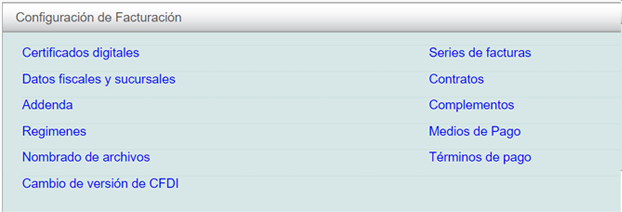
Upload a new CSD
Upon logging in, you will be able to view your registered certificates and their status. To upload a new CSD certificate, click the "Agregar certificado" button located on the right side of the window.

Next, select the location of the files corresponding to your new CSD. First, enter the ".cer" file by clicking the "Examinar" button, then select the ".key" file and enter the private key password.
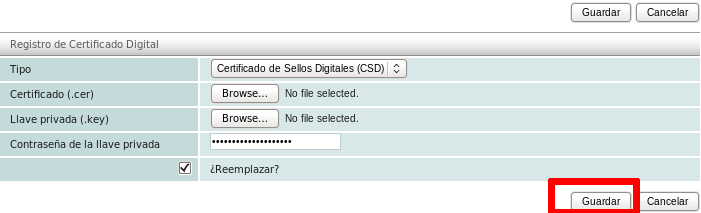
Selecting the "Reemplazar" option will instruct the system to use the new certificate from that point forward to generate your electronic invoices, replacing the previous one.
Note: it is necessary that your new CSD (Digital Certificate) be registered with the LCO (Local Certification Authority) to continue issuing your electronic invoices. This registration period can take between 48 and 72 hours. Solución Factible® only has read privileges and does not have any authority to edit or modify the list.
Finally, click on the "Guardar" button.
