Tags: configuration, update, tax address, company
Lesson ID-106.2.1
Updated to:
05/01/2026
Lesson objective
The user should know how to change the tax address of their company registered in the system.
Update the tax address
The registered address of your company or "Razón social" was recorded when you registered with Solución Factible®'s electronic invoicing system; however, some companies occasionally change their registered address or the address of a branch office.
Log in to the system as instructed in lesson ID-101.1
Once inside the portal, access the "Invoicing" module.

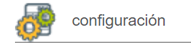
Next, click on the "Settings" button located in the "Actions" menu.
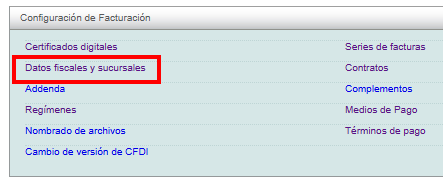
The available options in the settings panel will be displayed shortly. Click on the "Datos fiscales y sucursales" option.
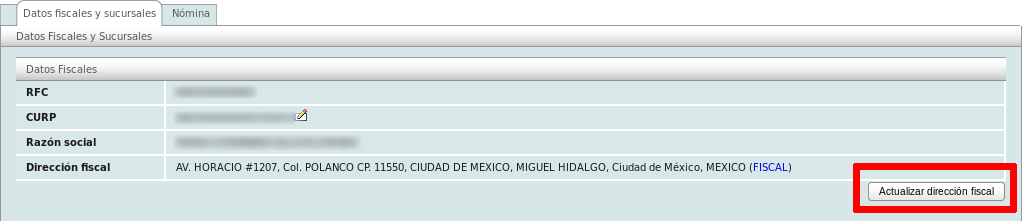
To update your tax address, click on the "Actualizar dirección fiscal" button located on the right side of the page. This will enable the fields so you can modify the address information.
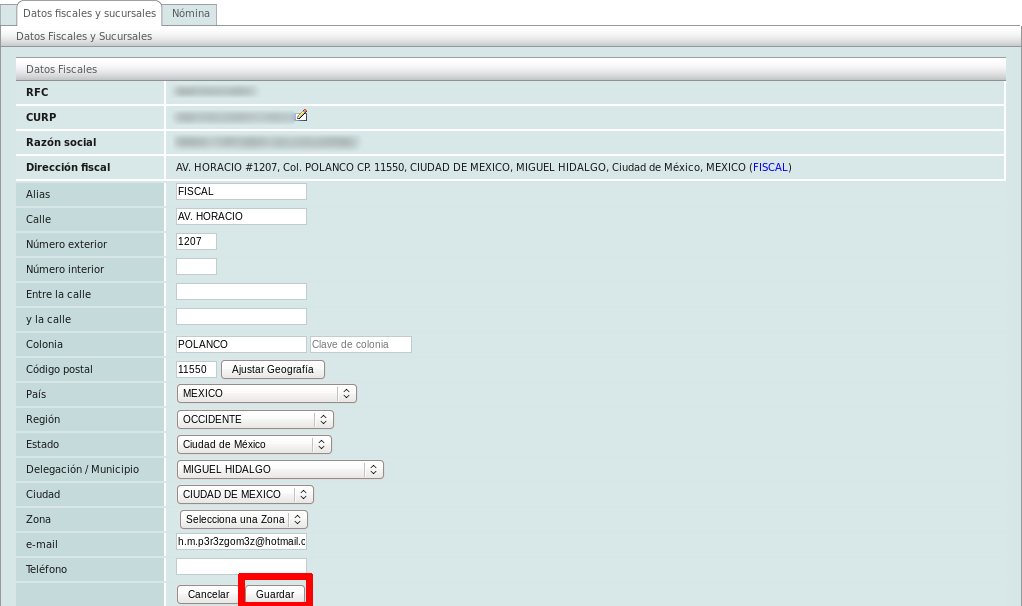
Finally, click on the "Actualizar" button located at the bottom of the form.
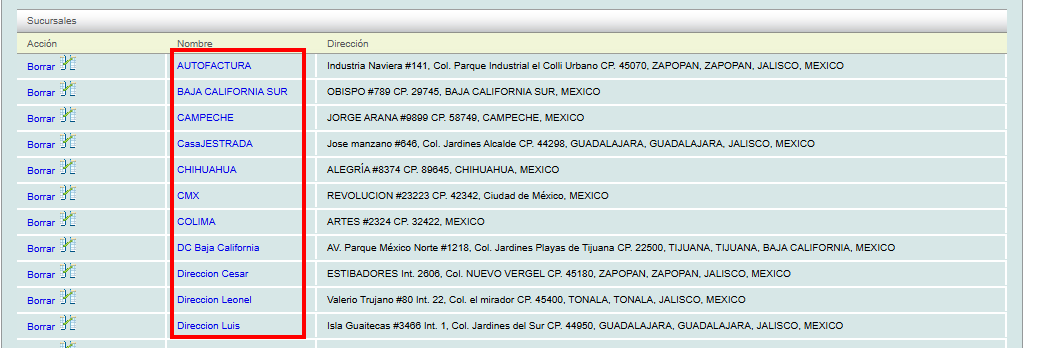
If you wish to update the branch address, scroll to the bottom of the page and click on the name of the branch you want to edit.
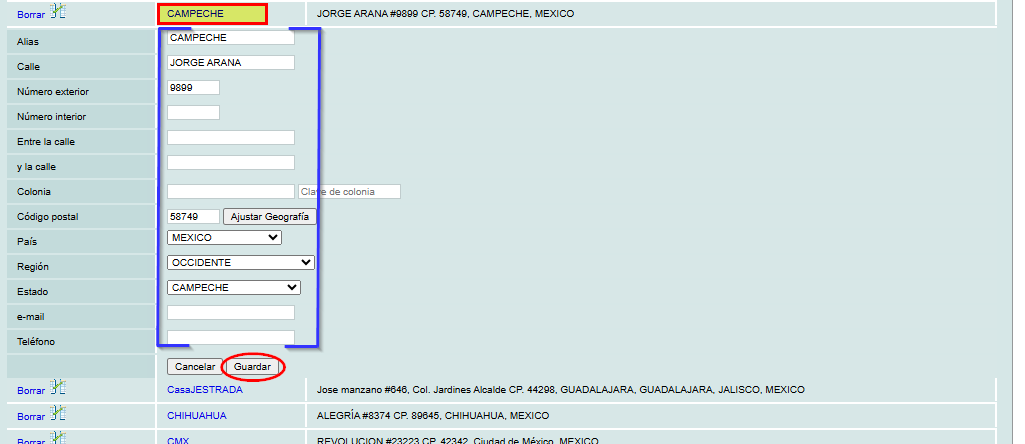
Make the necessary changes and press the "Guardar" button.
If you require further information, please contact our Support Department.
