Tags: configuration, add, branch, company
Lesson ID-106.2.2
Updated to:
06/01/2026
Lesson objective
The user should know how to add branches of their company to the system.
Add a branch
Your company's tax address was captured when you registered with the Solución Factible® electronic invoicing system; however, some companies have branches and wish to register them as well.
Log in to the system as instructed in lesson ID-101.1
Access the "Invoicing" module.

Click on the "Settings" button located in the "Actions" menu.

The available options in the settings panel will be displayed. Click on the "Datos fiscales y sucursales" option.
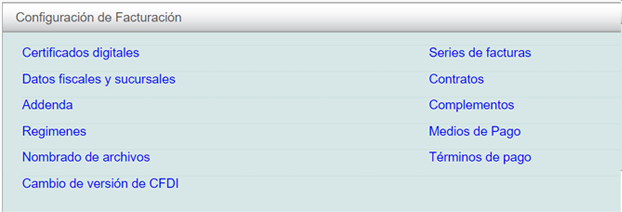
Add branch
You can view your company's registered address here. Below, you will find the registered branches. To add a new branch, click the "Nueva sucursal" button located in the lower right corner of the page.

Finally, press the "Guardar" button located at the bottom of the form.
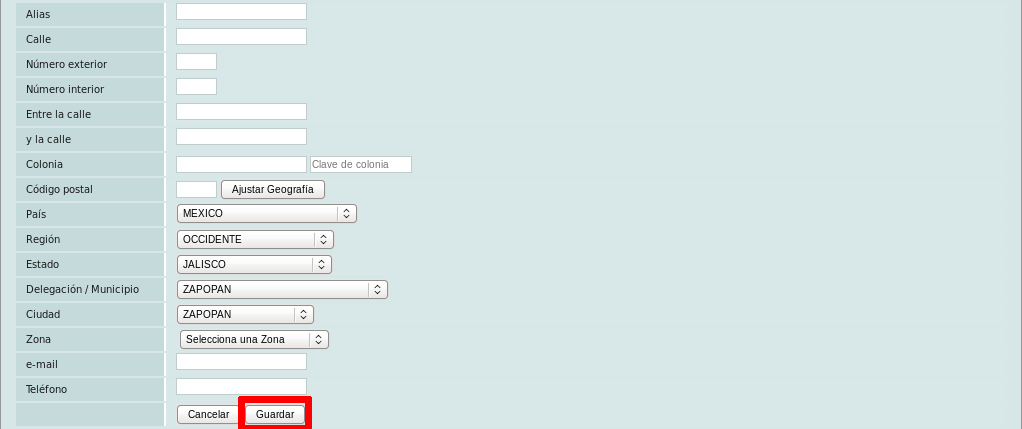
There is no limit to the number of branches you can register, so you can register as many as you need.
