Tags: CFD Reception, Configuration, Vendor, Invoice, Validation
Lesson ID-702.2
Updated to:
23/03/2026
Lesson objective
That the user understands the functionalities of the Vendor and Invoice Validation implementation.
First time access to portlet
To access the portlet from Vendor and Invoice Validation, follow these steps.
1.- Locate the menu and click on the "Solución Factible" box.
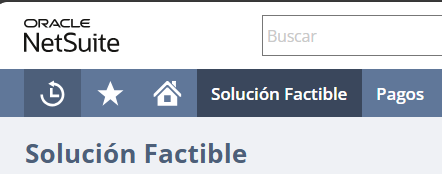
2.- Configure a custom portlet by clicking on "Configurar".

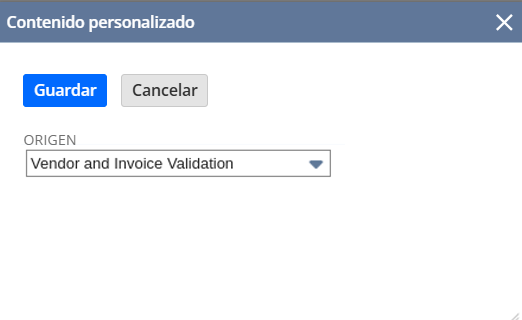
3.- Next, select "Vendor and Invoice Validation" from the drop-down menu and save the changes.
Authorize access to the application
Upon entering the screen (after configuring the portlet for the first time), you will need to authorize access to the application (Allow access to pop-up screens from the browser settings).
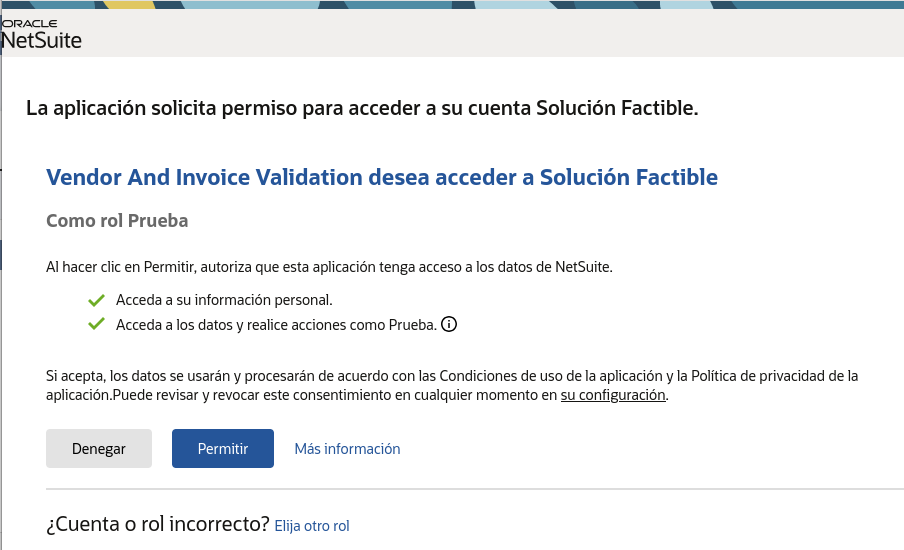
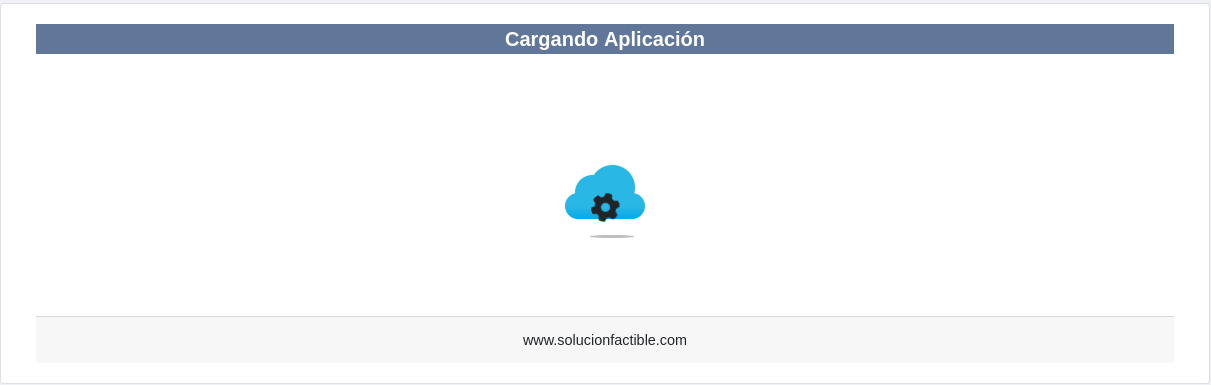
Once the application is authorized, the loading screen will be displayed and we will then be able to access the application.
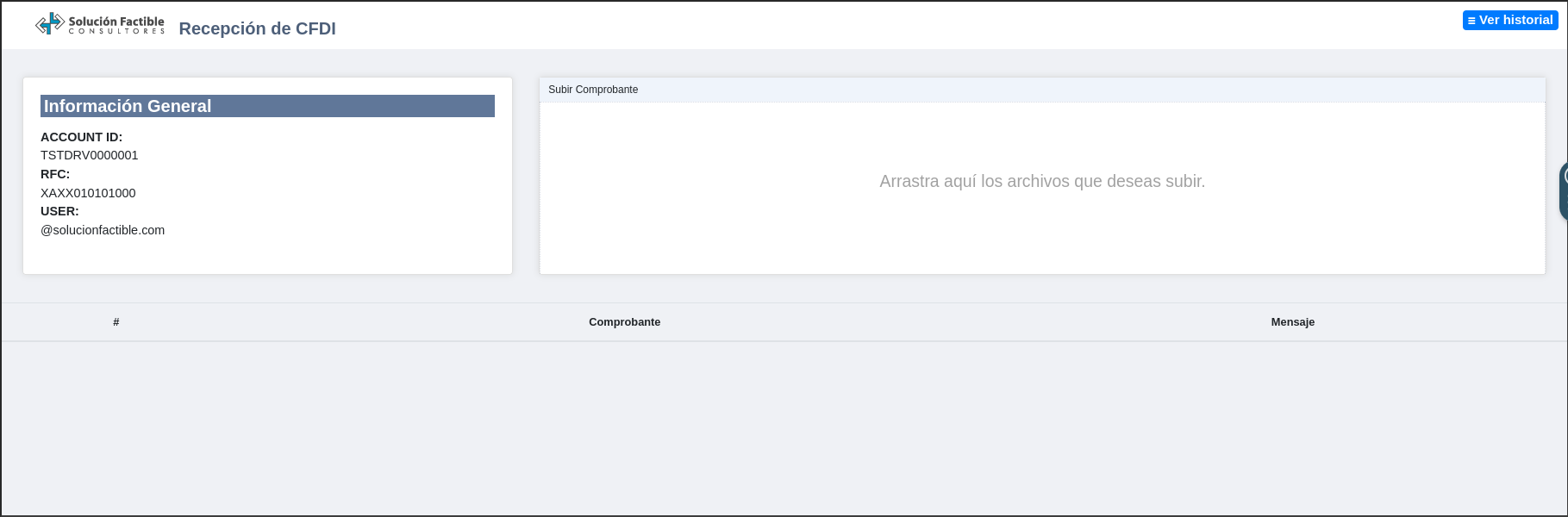
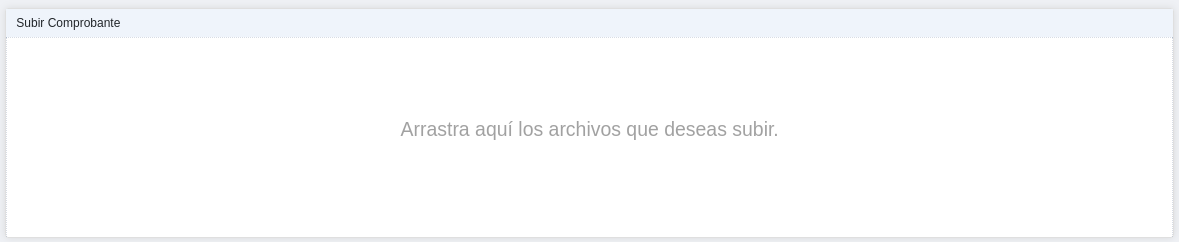
Upload e-documents
From the "Subir Comprobante" section, you can select one or multiple e-documents for validation.
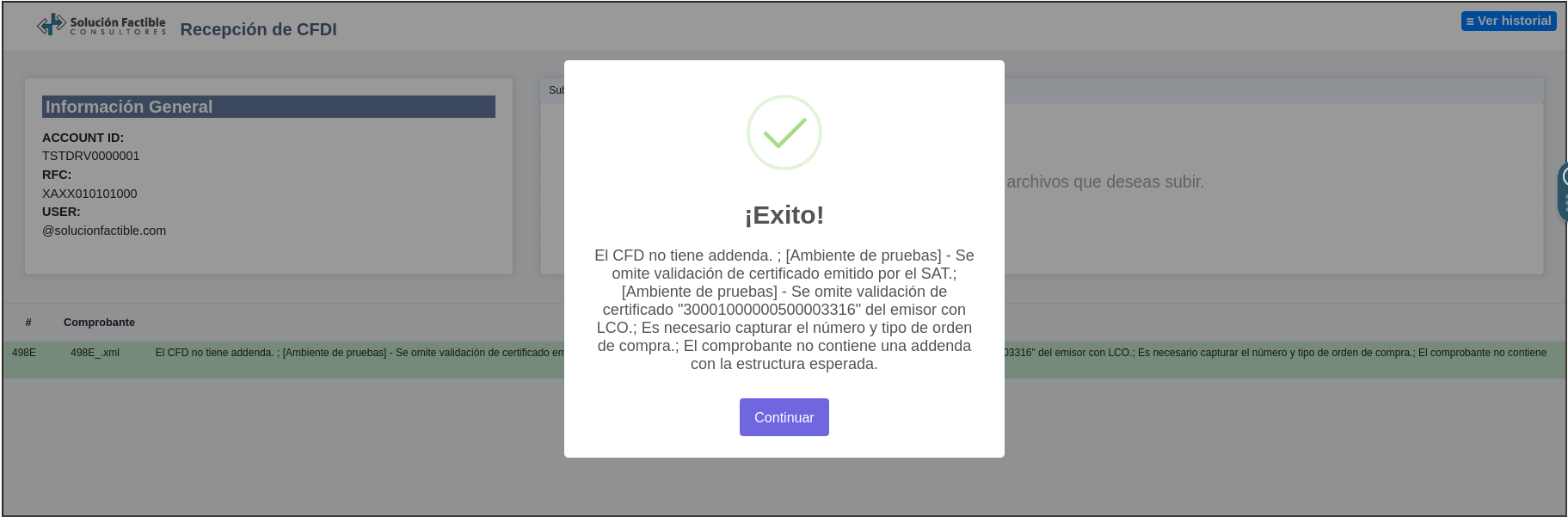
Once the e-document processing is complete, the validation result will be displayed on the screen.
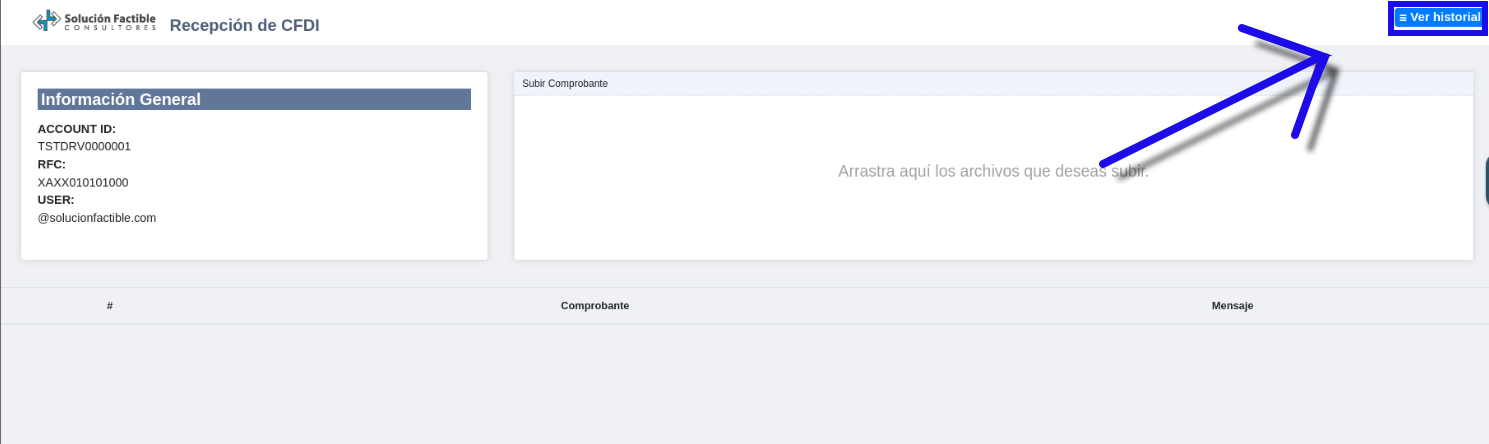
List of e-document
From the main screen, you can view the list of e-documents by clicking on the upper right corner called "Ver historial".
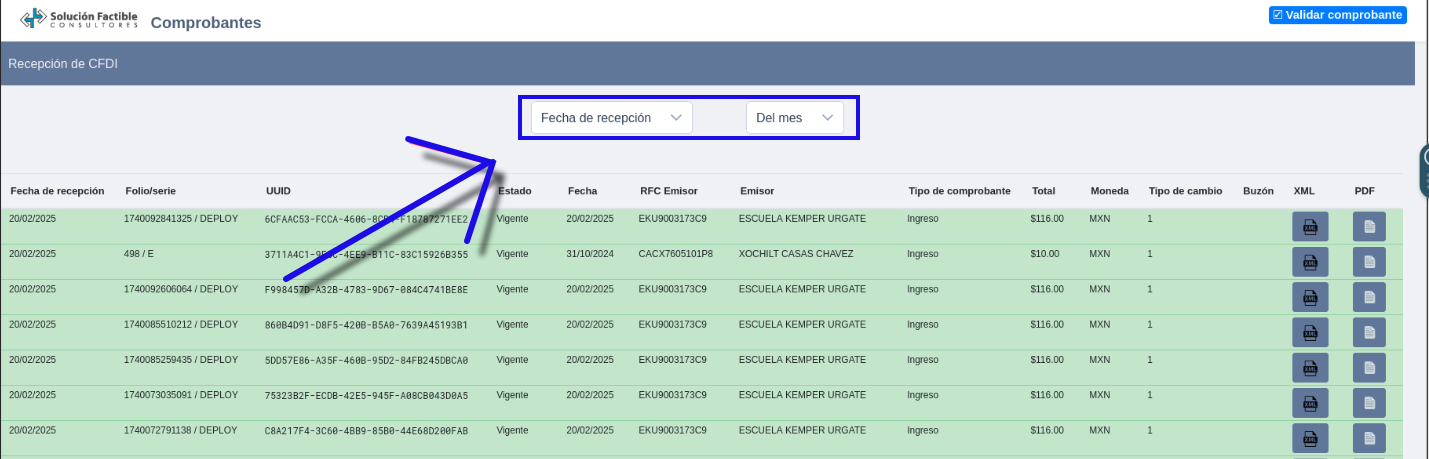
On the history screen, receipts can be filtered by "Fecha de recepción/ fecha de comprobante" and a particular date range.
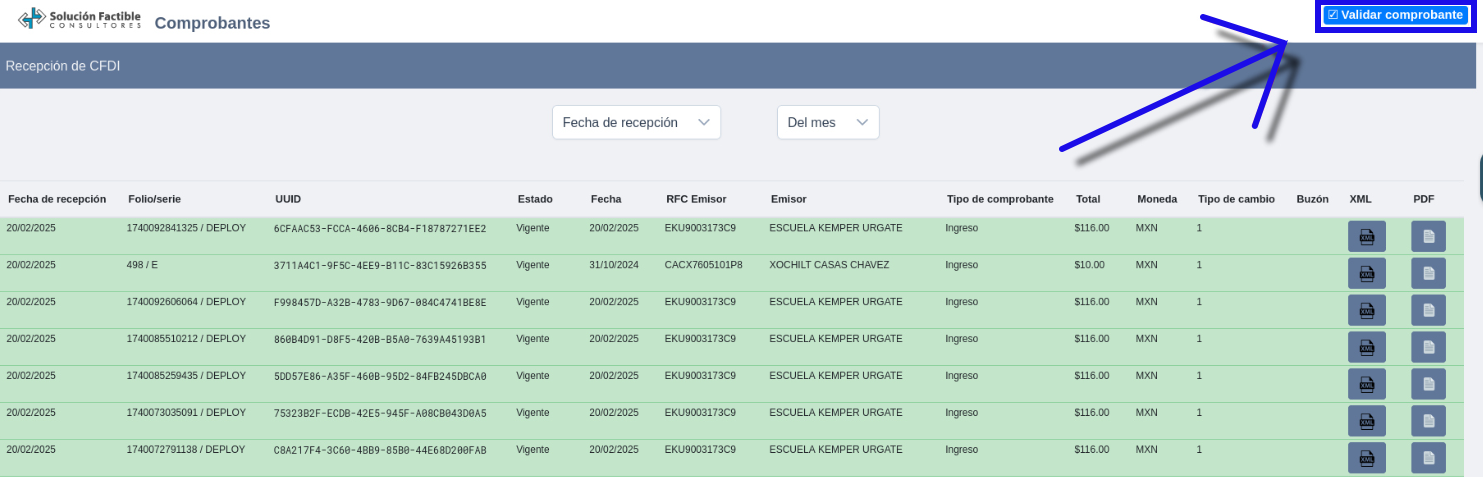
It is also possible to return to the e-document validation screen by clicking on the "Validar comprobante" button in the upper right corner.
Download e-documents
From the history screen, you can download the receipt in XML or PDF format by clicking on the corresponding icon.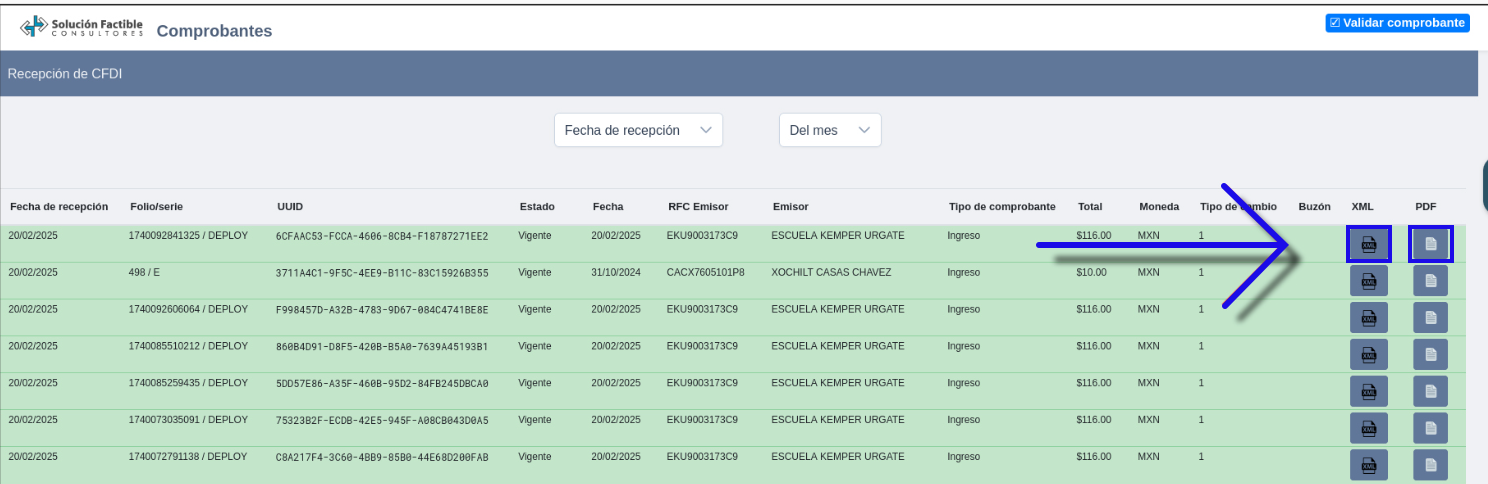
Common mistakes
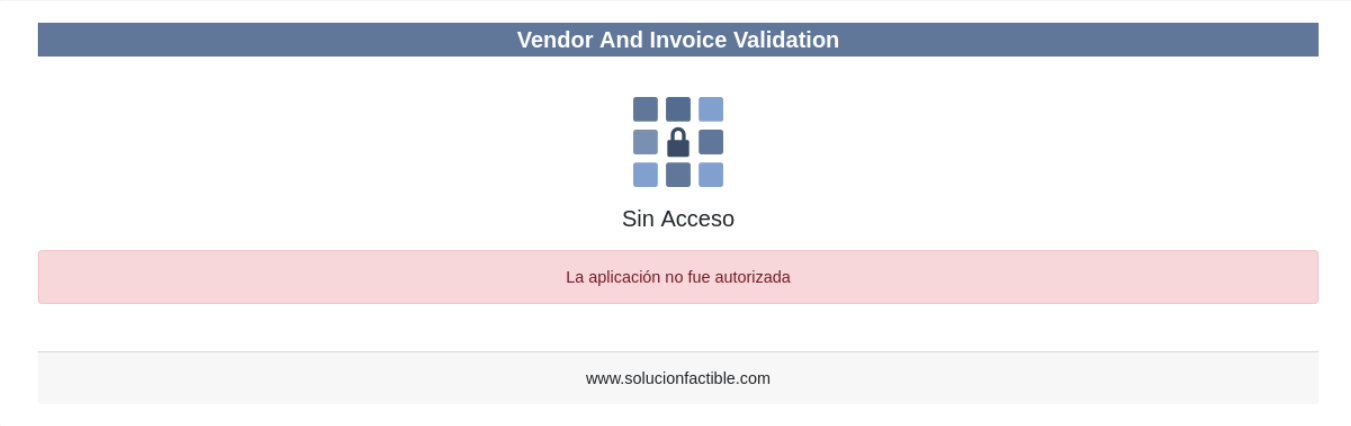
The following errors may appear if the application authorization process is not completed during cancellation or when closing the pop-up window, so you need to reload the screen to try again.
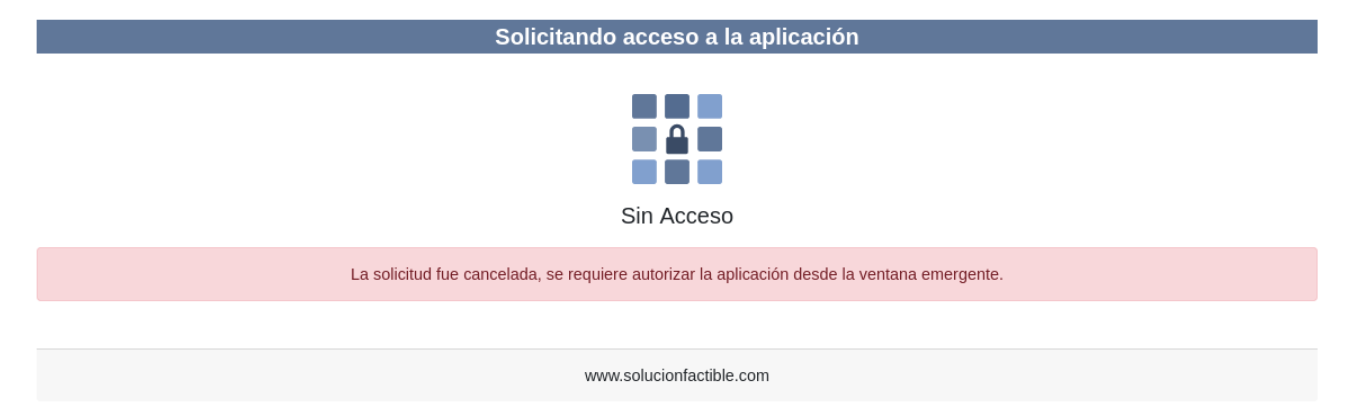
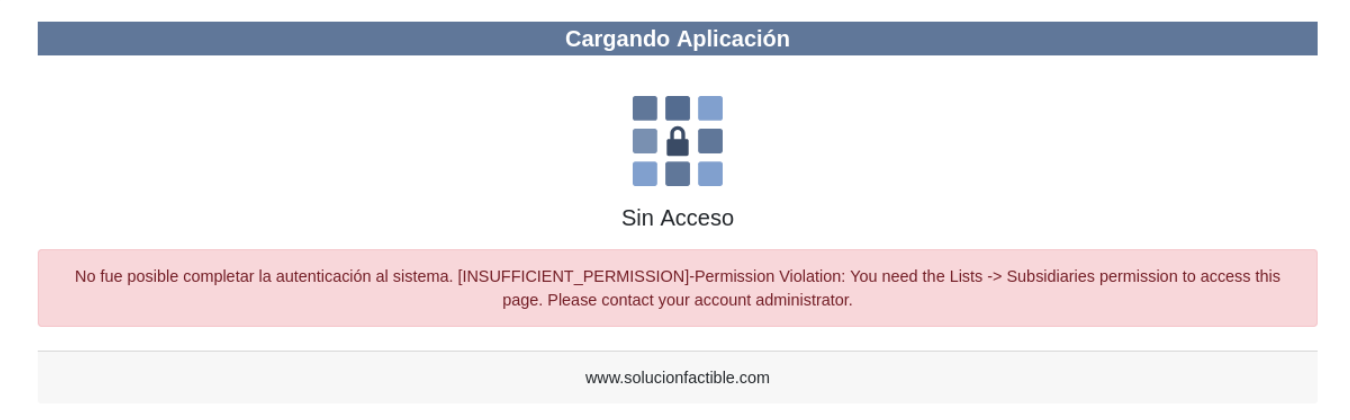
A similar type of error to the following may appear when the user does not have a permission required by the application (contact your NetSuite administrator).
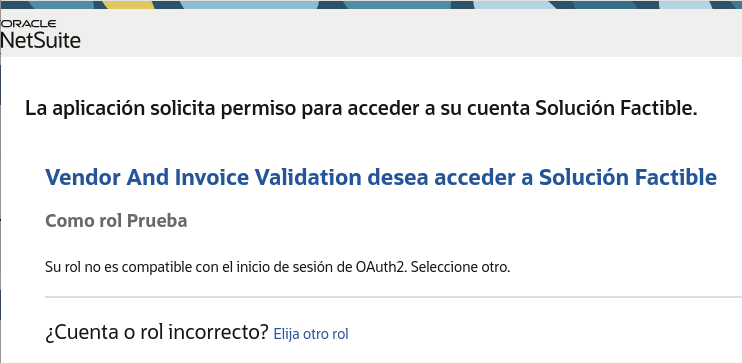
The following error may appear when authorizing the application; it will be necessary (to contact your NetSuite administrator).
If you require further clarification or need personalized assistance, you should contact Support.
