Tags: upload, new, CSD, configuration, implementation
Lesson ID-106.1.3
Updated to:
02/01/2026
Lesson objective
The user should know how to upload a new digital signature certificate to the system.
Uploading of Digital Seal Certificate (CSD) - New implementation
The Digital Seal Certificate (CSD) is issued by the SAT (Mexican Tax Administration Service) and is for the specific purpose of generating Digital Tax Receipts (CFD).
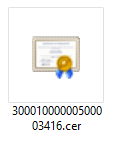
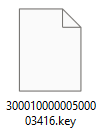
The CSD consists of a public key (.cer) and a private key (.key). However, it is essential to understand that the CSD is different from the e.firma (Electronic Signature), formerly known as FIEL.
This lesson will show the steps for the user to upload their Digital Seal Certificate (CSD) and proceed with activating their services for using the Solución Factible system.
First, you must ensure you have the necessary files on your computer, which are the CSD Certificate and the Private Key. These files are obtained from the SAT (Mexican Tax Administration Service) or online with the assistance of your accountant.
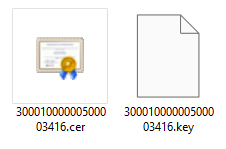
And finally, make sure you have the password for the private key written down, which is the same password that was provided to the SAT (Mexican Tax Administration Service) when the process was completed.
Note: you must type the exact number of characters, as it recognizes any difference in symbols or letters, whether uppercase or lowercase.
Next, click on the following link: https://solucionfactible.com/crm/subeCSD.jsp
The following form will be displayed, and each field is described below.
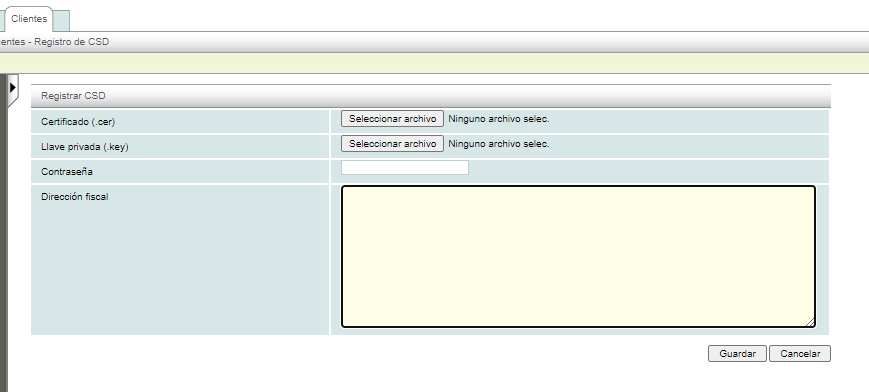
Certificado (.cer). The certificate file will be uploaded here. To do this, click the “Seleccionar archivo” or “Examinar” button to specify the location where your file is stored. The file extension is ".cer" and it will be displayed in this format.
Llave privada (.key). In this section, you will upload the private key file. Click the “Seleccionar archivo” or “Examinar” button to specify the location where your file is stored. The file extension is ".key" and it will be displayed in this format.
Contraseña (Password). In this section, you must enter the password you used to complete the process with the SAT (Mexican Tax Administration Service) or the one provided by your accountant.
Dirección Fiscal (Tax address). It is necessary to provide the complete address, which must be the same as the one indicated on your Tax Status Certificate.
Finally, click the "Guardar" button.
If the data is correct, the system will store and encrypt the information to continue with the process; otherwise, it will send the corresponding error message, which you can consult with your accountant or our sales representatives for guidance.
